# Announcements - Modals/Slide Outs

To initiate the creation of a modal or slide-out, navigate to the "Engagement" section and click on "Create Modal/Slideout" or use the shortcut "Command + K" or "CTRL + K" and enter "Create Modal" or "Create Slide Out" to access the respective page.

<figure><img src="https://1530140973-files.gitbook.io/~/files/v0/b/gitbook-x-prod.appspot.com/o/spaces%2F0MNwB6wkvFRea3PXNC5U%2Fuploads%2FrtIgpwKD1wAr5OAteoyQ%2FScreenshot%202024-01-02%20at%201.52.41%E2%80%AFPM.png?alt=media&#x26;token=16c7559f-134d-40f3-a43a-1fc6d5bd2bec" alt=""><figcaption></figcaption></figure>

Choose between modal or slideout based on your needs. Pick a template and customize it according to your content and specific requirements.

<figure><img src="https://1530140973-files.gitbook.io/~/files/v0/b/gitbook-x-prod.appspot.com/o/spaces%2F0MNwB6wkvFRea3PXNC5U%2Fuploads%2F3zguSNv1Yg6Zzu8hx55V%2FScreenshot%202024-01-02%20at%202.06.46%E2%80%AFPM.png?alt=media&#x26;token=8e62ccb5-85aa-4ef9-81d9-19399c2afb4e" alt=""><figcaption></figcaption></figure>

You can include sections by clicking on the "+" symbol and choosing the desired type (text, header, button, video, image, embed) that you wish to add.

You have the option to add sections either at the bottom or on the right side.

You can include up to three sections in a row and any desired number of sections in a column.

<div><figure><img src="https://1530140973-files.gitbook.io/~/files/v0/b/gitbook-x-prod.appspot.com/o/spaces%2F0MNwB6wkvFRea3PXNC5U%2Fuploads%2F1XDrR3JMjjyfm6w42ZUd%2FScreenshot%202024-01-02%20at%203.18.19%E2%80%AFPM.png?alt=media&#x26;token=b3338e22-8a34-48cc-bce4-b2e96ba6188c" alt=""><figcaption></figcaption></figure> <figure><img src="https://1530140973-files.gitbook.io/~/files/v0/b/gitbook-x-prod.appspot.com/o/spaces%2F0MNwB6wkvFRea3PXNC5U%2Fuploads%2FPZbDJ5gzvZ8Vg6j6Cpjt%2FScreenshot%202024-01-02%20at%203.19.23%E2%80%AFPM.png?alt=media&#x26;token=6d4116e6-83c8-41ab-b754-cc7471ccc28a" alt=""><figcaption></figcaption></figure></div>

Enhance the appearance of your modal or slideout by applying styles through the Styles tab, and fine-tune its configuration in the Settings tab.

Within the Settings, you have the ability to control the audience and display location of your modal or slideout by incorporating segments. Additionally, you can specify the conditions for when it should be displayed.

Once you've made all the necessary modifications, switch the status to "live" to apply the changes and make them visible to your users.

<figure><img src="https://1530140973-files.gitbook.io/~/files/v0/b/gitbook-x-prod.appspot.com/o/spaces%2F0MNwB6wkvFRea3PXNC5U%2Fuploads%2Fx0zrVM4lDQHlo4OJGTQv%2FScreenshot%202024-01-02%20at%203.29.06%E2%80%AFPM.png?alt=media&#x26;token=a412618c-9404-47f1-b8ad-fecc5a01906d" alt="" width="303"><figcaption></figcaption></figure>

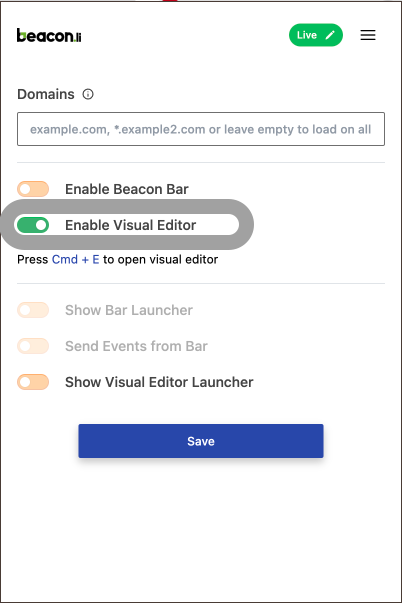
[Click here](https://chrome.google.com/webstore/detail/beaconli/mmclgbikmomngmmilcjodlhfipikjeji?hl=en) to install the Beacon Editor extension and enable visual editor.

<figure><img src="https://1530140973-files.gitbook.io/~/files/v0/b/gitbook-x-prod.appspot.com/o/spaces%2F0MNwB6wkvFRea3PXNC5U%2Fuploads%2FHUuRGtxcJ43rVs5qQupP%2FScreenshot%202024-01-02%20at%204.35.52%E2%80%AFPM.png?alt=media&#x26;token=8deb779f-66d6-4aaf-9d23-470c5d57efbc" alt=""><figcaption></figcaption></figure>

Utilize our chrome extension to create or modify modals or slideouts. Click on "Create New" or use shortcut "command + E" or "CTRL + E" and navigate to the Modals section, where you can view the list of your existing modals and slideouts. Use the "Create New" button to initiate the creation of a new modal or slideout.

<figure><img src="https://1530140973-files.gitbook.io/~/files/v0/b/gitbook-x-prod.appspot.com/o/spaces%2F0MNwB6wkvFRea3PXNC5U%2Fuploads%2FYZSDwwWHn8QG8Eco98KC%2FScreenshot%202024-01-02%20at%204.45.12%E2%80%AFPM.png?alt=media&#x26;token=c66d3db6-cec6-4855-9bcb-7752be6695fe" alt=""><figcaption></figcaption></figure>

Select the play icon from the list to edit existing modals/slideouts, and you can commence the editing process within your own dashboard.

<figure><img src="https://1530140973-files.gitbook.io/~/files/v0/b/gitbook-x-prod.appspot.com/o/spaces%2F0MNwB6wkvFRea3PXNC5U%2Fuploads%2FmNaLLLGUAhz8BPGEnWrG%2FScreenshot%202024-01-02%20at%204.47.04%E2%80%AFPM.png?alt=media&#x26;token=bf34cef6-59e4-410a-861a-b78436e635ca" alt=""><figcaption></figcaption></figure>


---

# Agent Instructions: Querying This Documentation

If you need additional information that is not directly available in this page, you can query the documentation dynamically by asking a question.

Perform an HTTP GET request on the current page URL with the `ask` query parameter:

```
GET https://docs.beacon.li/announcements-modals-slide-outs.md?ask=<question>
```

The question should be specific, self-contained, and written in natural language.
The response will contain a direct answer to the question and relevant excerpts and sources from the documentation.

Use this mechanism when the answer is not explicitly present in the current page, you need clarification or additional context, or you want to retrieve related documentation sections.