# Announcements - Modals/Slide Outs
To initiate the creation of a modal or slide-out, navigate to the "Engagement" section and click on "Create Modal/Slideout" or use the shortcut "Command + K" or "CTRL + K" and enter "Create Modal" or "Create Slide Out" to access the respective page.
Choose between modal or slideout based on your needs. Pick a template and customize it according to your content and specific requirements.
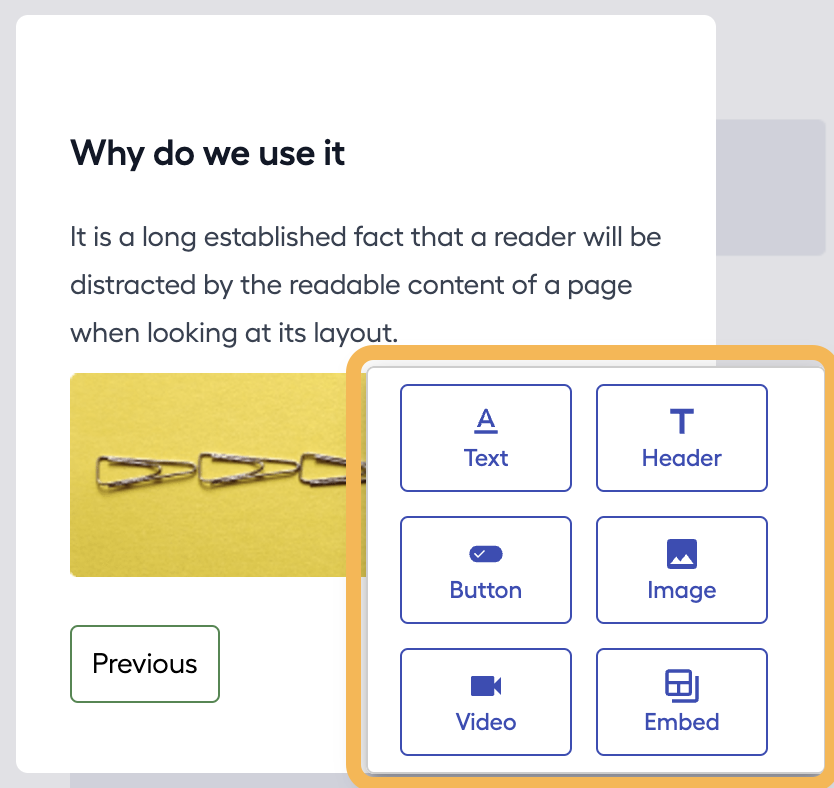
You can include sections by clicking on the "+" symbol and choosing the desired type (text, header, button, video, image, embed) that you wish to add.
You have the option to add sections either at the bottom or on the right side.
You can include up to three sections in a row and any desired number of sections in a column.
Enhance the appearance of your modal or slideout by applying styles through the Styles tab, and fine-tune its configuration in the Settings tab.
Within the Settings, you have the ability to control the audience and display location of your modal or slideout by incorporating segments. Additionally, you can specify the conditions for when it should be displayed.
Once you've made all the necessary modifications, switch the status to "live" to apply the changes and make them visible to your users.
[Click here](https://chrome.google.com/webstore/detail/beaconli/mmclgbikmomngmmilcjodlhfipikjeji?hl=en) to install the Beacon Editor extension and enable visual editor.
Utilize our chrome extension to create or modify modals or slideouts. Click on "Create New" or use shortcut "command + E" or "CTRL + E" and navigate to the Modals section, where you can view the list of your existing modals and slideouts. Use the "Create New" button to initiate the creation of a new modal or slideout.
Select the play icon from the list to edit existing modals/slideouts, and you can commence the editing process within your own dashboard.
# Announcements - Banners/Info-Island
To initiate the creation of a Banner or Info-Island, navigate to the "Engagement" section and click on "Create Banner/Info-Island" or use the shortcut "Command + K" or "CTRL + K" and enter "Create Banner" or "Create Info-Island" to access the respective page.
Choose between Banners or Info-Island based on your needs. Pick a template and customize it according to your content and specific requirements.
You can include sections by clicking on the "+" symbol and choosing the desired type (text, header, button, video, image, embed) that you wish to add.
You have the option to add sections either at the bottom or on the right side.
You can include up to three sections in a row and any desired number of sections in a column.
Enhance the appearance of your Banner or Info-Island by applying styles through the Styles tab, and fine-tune its configuration in the Settings tab.
Within the Settings, you have the ability to control the audience and display location of your Banner or Info-Island by incorporating segments. Additionally, you can specify the conditions for when it should be displayed.
Once you've made all the necessary modifications, switch the status to "live" to apply the changes and make them visible to your users.
[Click here](https://chrome.google.com/webstore/detail/beaconli/mmclgbikmomngmmilcjodlhfipikjeji?hl=en) to install the Beacon Editor extension and enable visual editor.
Utilize our chrome extension to create or modify Banners or Info-Island. Click on "Create New" or use shortcut "command + E" or "CTRL + E" and navigate to the Banners section, where you can view the list of your existing Banners and Info-Islands. Use the "Create New" button to initiate the creation of a new Banner or Info-Island.
Select the play icon from the list to edit existing Banners, and you can commence the editing process within your own dashboard.
Similarly, you can edit the Info-Island in the same manner. Refer to the provided screenshot below to visualize how the Info-Island will appear.
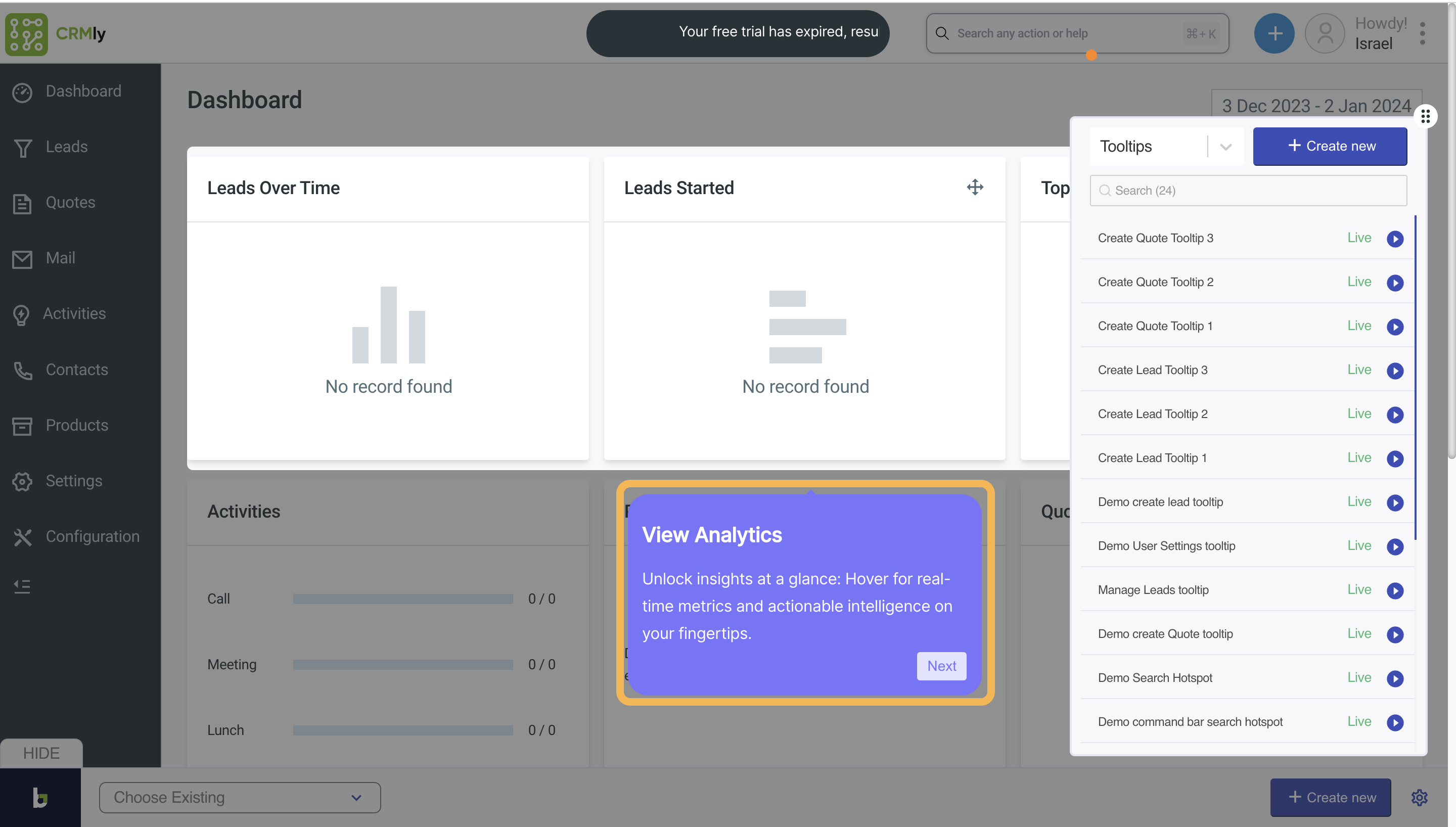
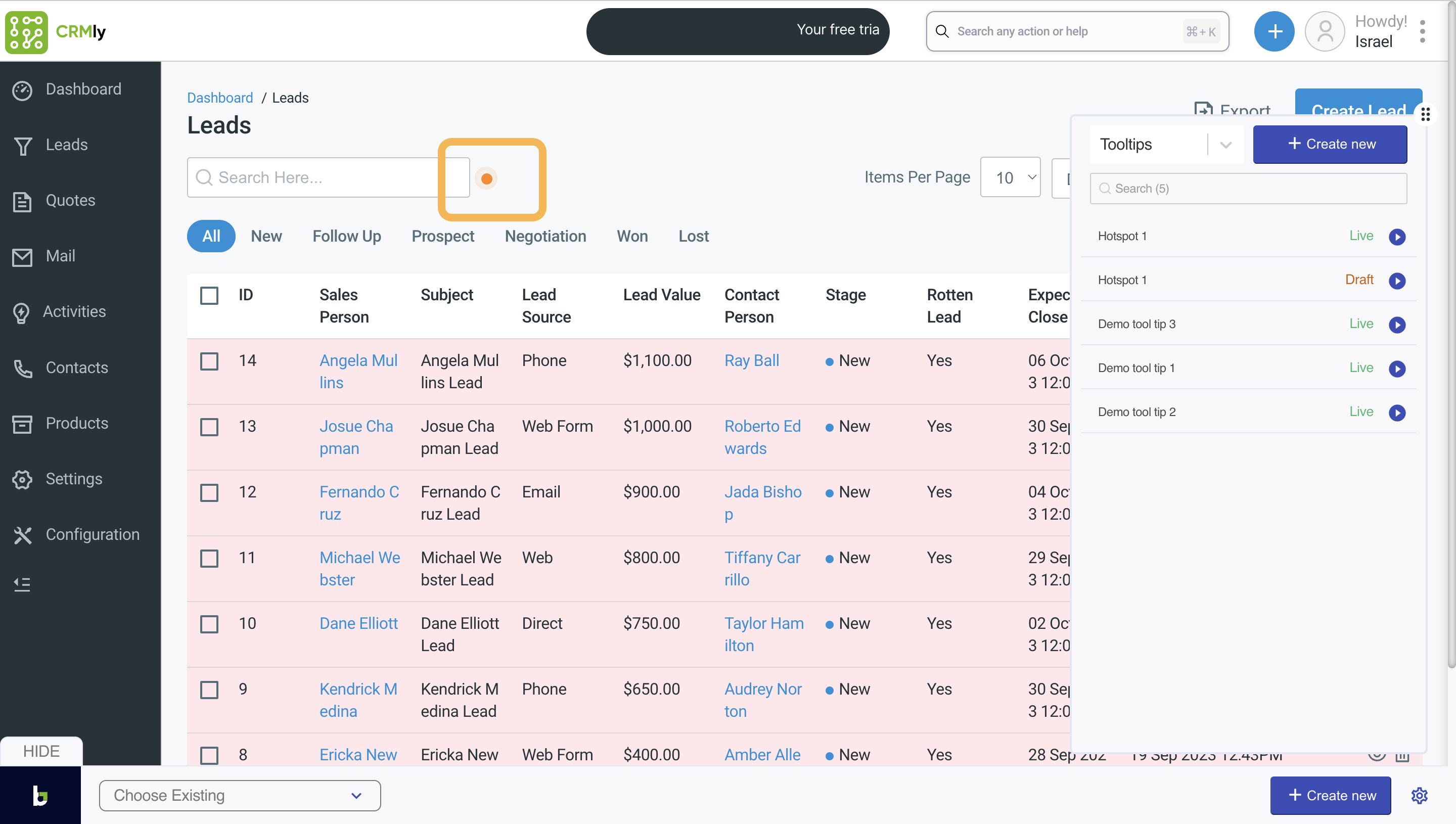
# Highlights - Tooltips/Hotspots
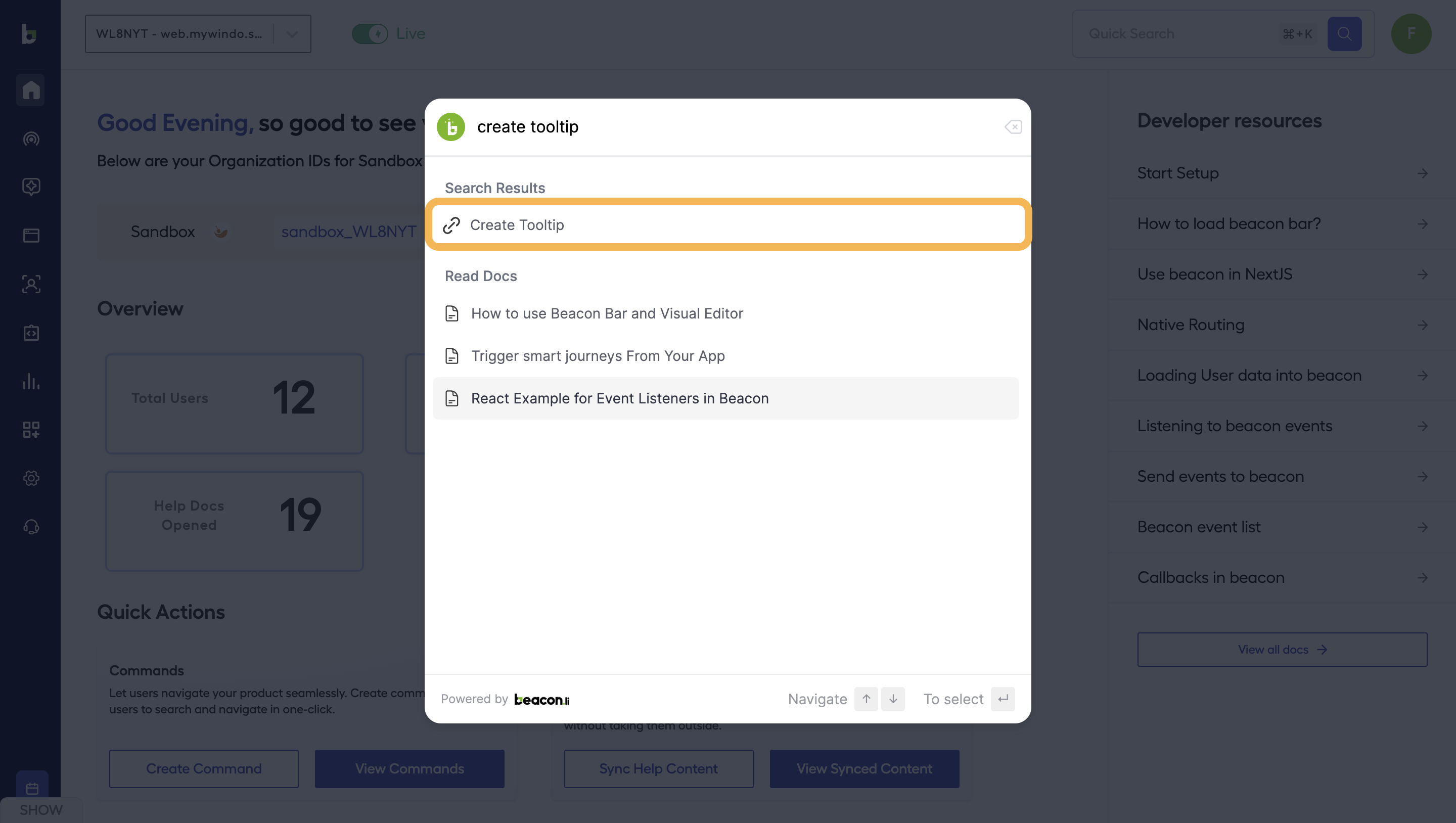
To initiate the creation of a Tooltips or Hotspots, navigate to the "Engagement" section "Highlights" and click on "Create Tooltip/Hotspot" or use the shortcut "Command + K" or "CTRL + K" and enter "Create Tooltip" or "Create Hotspot" to access the respective page.
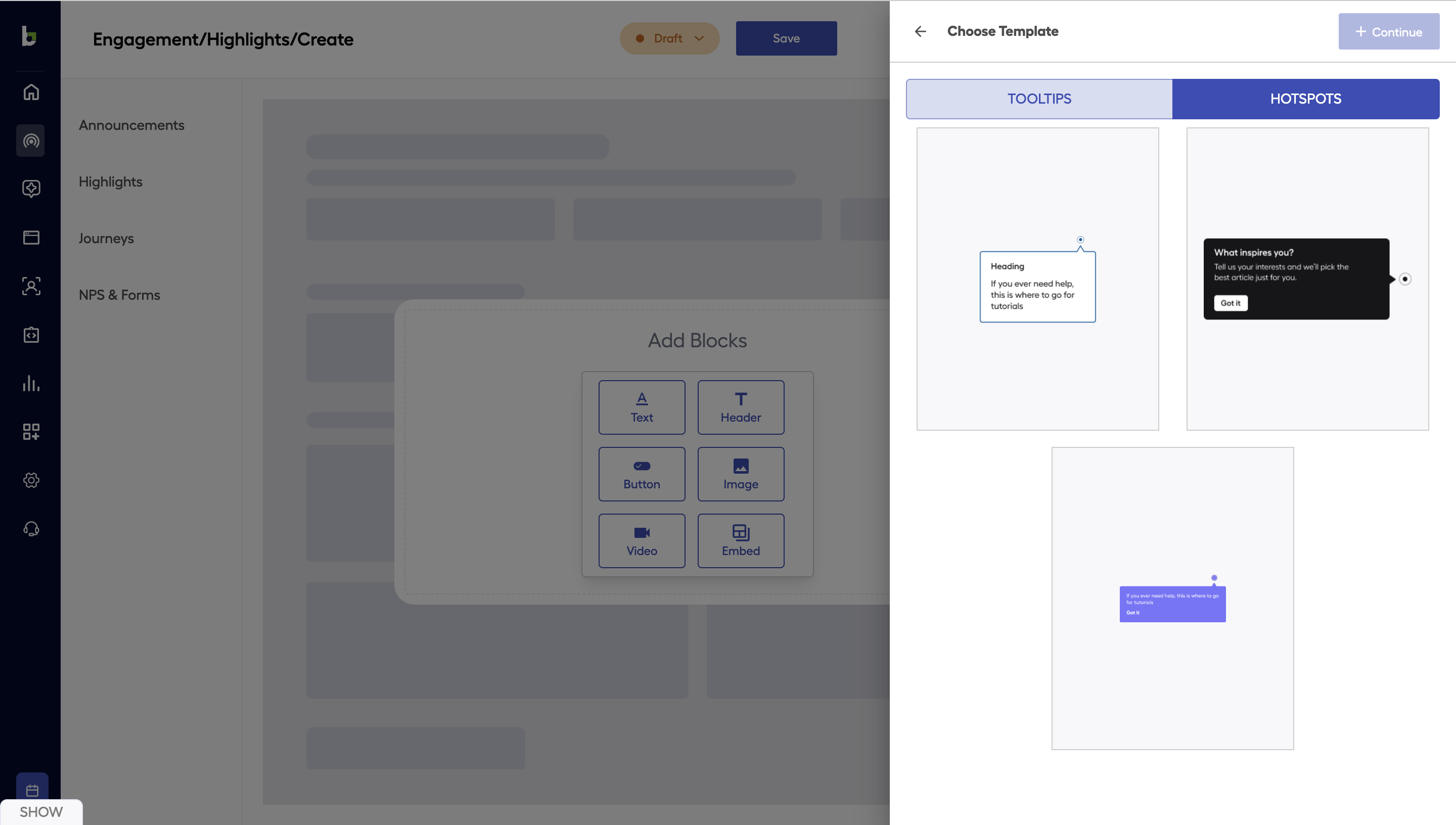
Choose between Tooltip or Hotspot based on your needs. Pick a template and customize it according to your content and specific requirements.
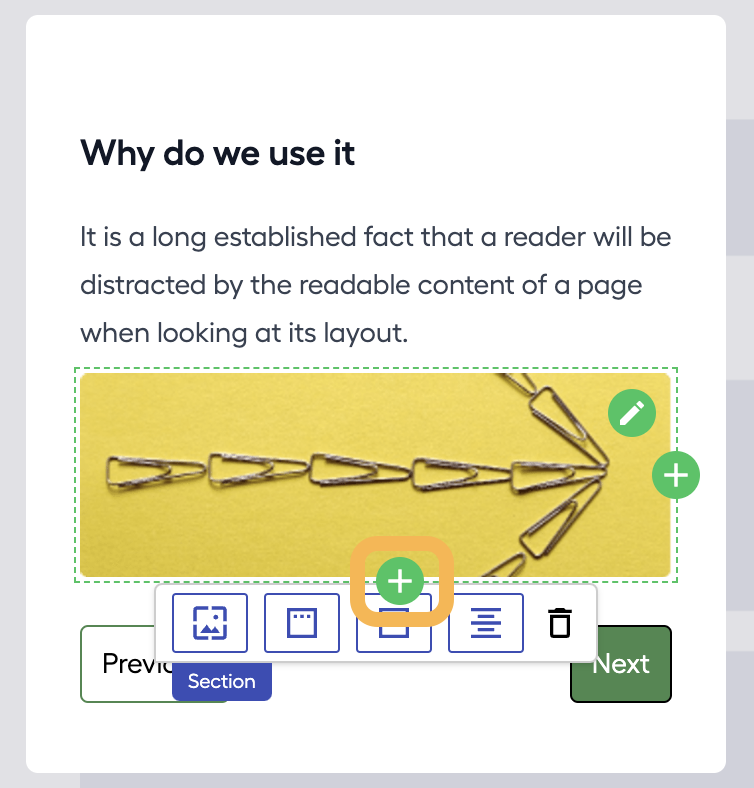
You can include sections by clicking on the "+" symbol and choosing the desired type (text, header, button, video, image, embed) that you wish to add.
You have the option to add sections either at the bottom or on the right side.
You can include up to three sections in a row and any desired number of sections in a column.
Enhance the appearance of your Tooltip or Hotspot by applying styles through the Styles tab, and fine-tune its configuration in the Settings tab.
Within the Settings, you have the ability to control the audience and display location of your Tooltip or Hotspot by incorporating segments.
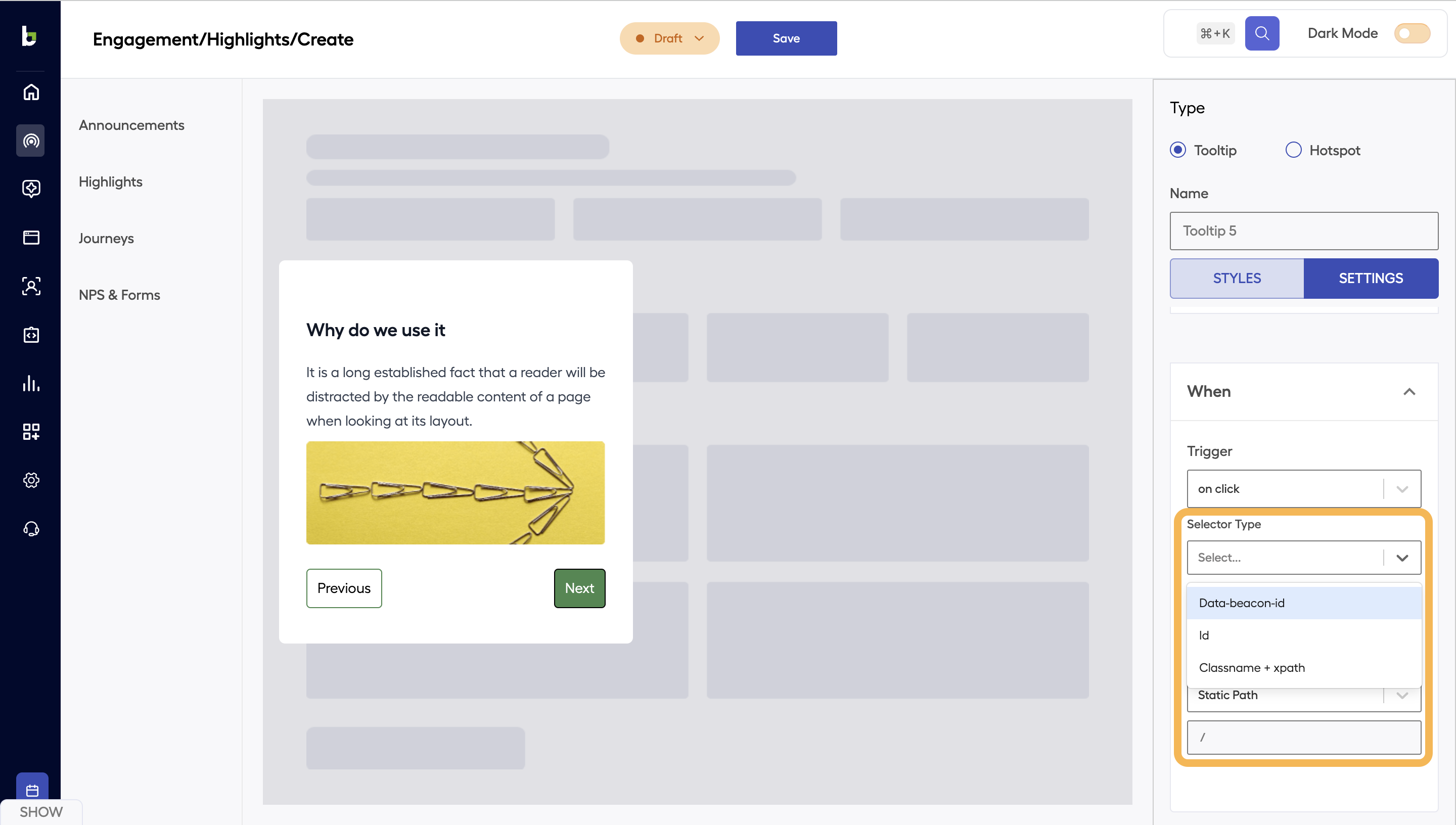
Moreover, you need to incorporate element data such as data-beacon-id, id, or classname+xpath for the specific element to which you intend to display the tooltip. Additionally, specify the path where the tooltip should be visible.
Once you've made all the necessary modifications, switch the status to "live" to apply the changes and make them visible to your users.
[Click here](https://chrome.google.com/webstore/detail/beaconli/mmclgbikmomngmmilcjodlhfipikjeji?hl=en) to install the Beacon Editor extension and enable visual editor.
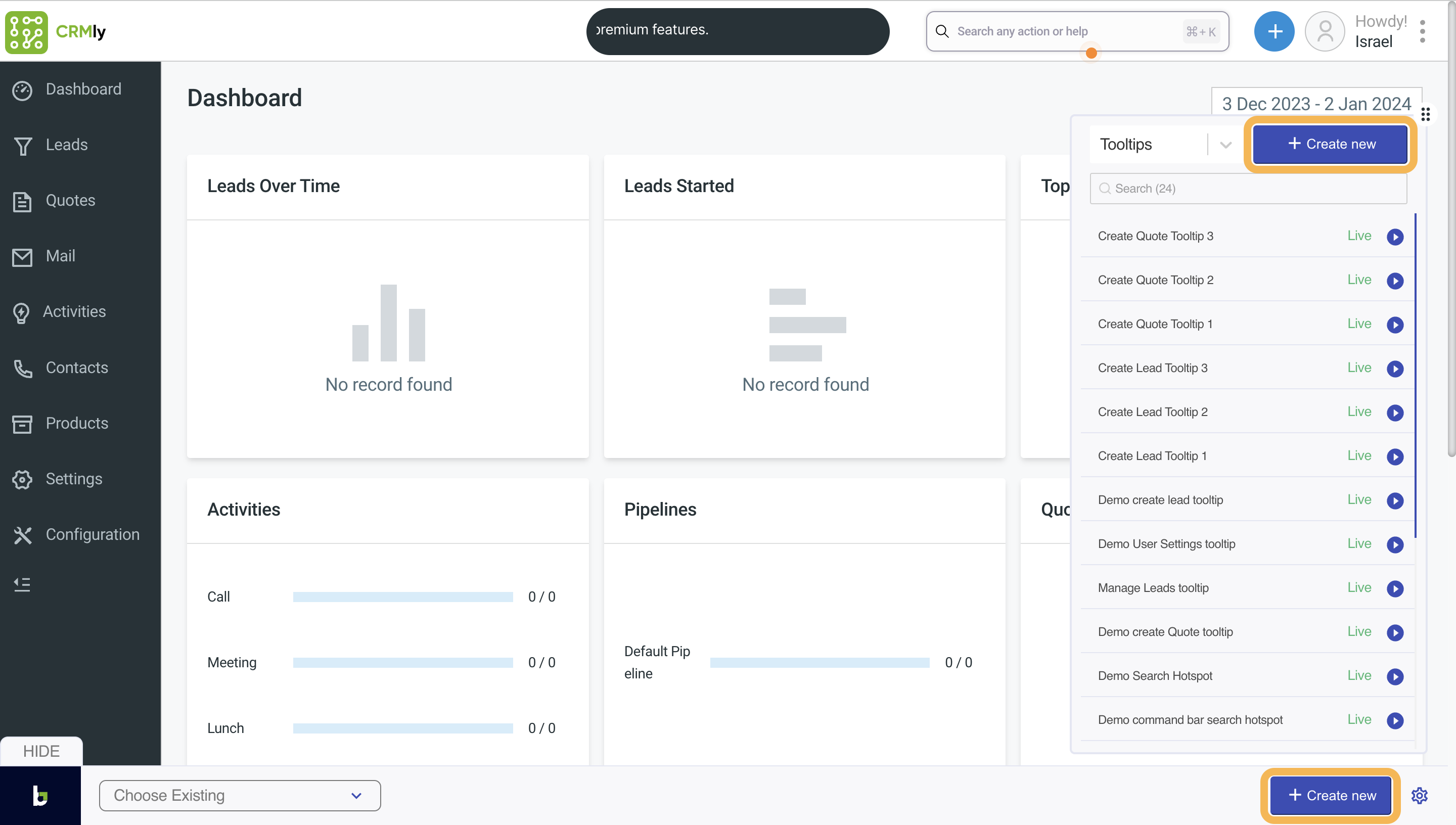
Utilize our chrome extension to create or modify Tooltips or Hotspots. Click on "Create New" or use shortcut "command + E" or "CTRL + E" and navigate to the Tooltips section, where you can view the list of your existing Tooltips and Hotspots. Use the "Create New" button to initiate the creation of a new Tooltip or Hotspot.
To preview existing tooltips or hotspots, navigate to the corresponding element page and click on the play icon.
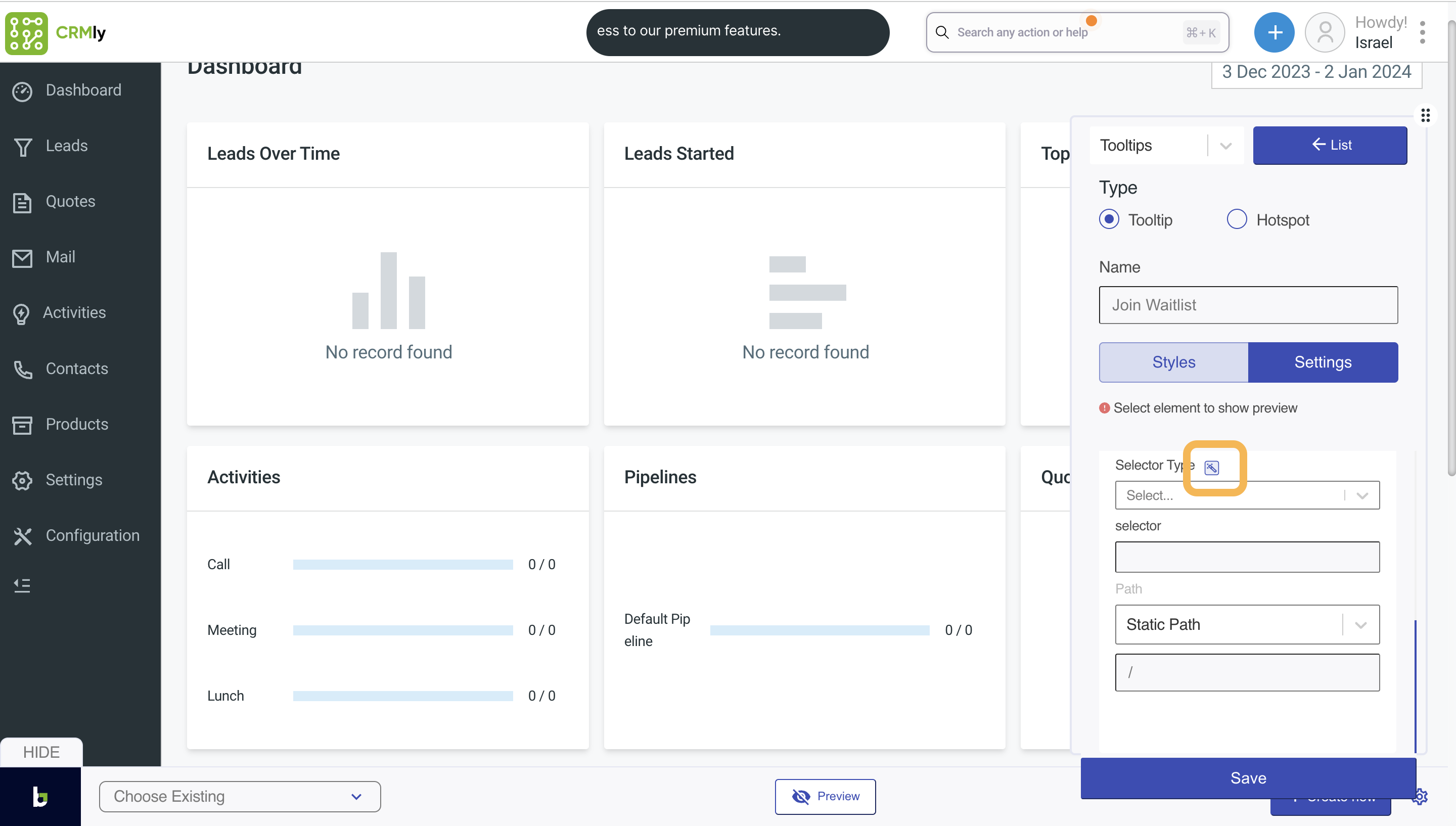
When creating a new tooltip or hotspot, use the magic tool. Choose the magic tool, then click on the element where you wish to display the tooltip and customize it according to your needs.
The following illustrates the display of the tooltip for the chosen element.
The following illustrates the display of the hotspot for the chosen element.
# Journeys - Flows
To initiate the creation of a Flow, navigate to the "Engagement" section "Journeys" and click on "Create Flow" or use the shortcut "Command + K" or "CTRL + K" and enter "Create Flow" to access the respective page.
Input the flow name, include segments to determine the audience and timing for display, and configure the trigger type for the flow.
You have the option to incorporate various entity types, such as command, help center, tooltip, or modal, into a flow by using the select dropdown.
To include multiple items within the same entity type, click on "Add More." Alternatively, you can add different entities at the top, bottom, or in the middle by clicking on the "+" icon.
You can delete any entity by clicking on "-" icon.
Upon completing all the modifications, switch the status to "public" and then click the save button.
# Journeys - Guides
To initiate the creation of a Guide, navigate to the "Engagement" section "Journeys-Guides" and click on "Create Guide" or use the shortcut "Command + K" or "CTRL + K" and enter "Create Guide" to access the respective page.
Provide essential information such as name, title, and description. Choose the guide type as either sequential or non-sequential.
* Sequential : Users can navigate through journey steps in a sequential order, user cannot click on next step without completing the previous step.
* Non-sequential : Users have the flexibility to click on any step and complete the corresponding journey.
Select "Add Step" input the title and description, and designate when the step should be marked as complete. Search and choose the desired command or help documentation for the steps.
To incorporate steps in groups, activate the group switch and add the necessary groups. If groups are enabled, all created steps must be associated with some group.
You also have the option to set steps as sequential or non-sequential within each group.
Upon completion of all steps, display a thank you message. Customize the message title and description. If you wish to include confetti, activate the confetti switch.
Specify the behavior to determine the audience and location from where the journey should commence.
On the right side, you'll find the preview. Utilize the "Change Pinned View" button to observe both the main view and pinned view previews simultaneously. Additionally, enable the dark mode switch to preview how it will appear on a dark-mode screen.
Once you've made all the required modifications, switch the status to "public" and then click the save button.
Additionally, utilize our extension to initiate the journey and preview how it will appear in your dashboard. Evaluate the functionality by clicking on individual steps.
Select "Create New," go to Smart Journeys, and click on the play icon to start the journey.
Refer to the screenshot below to visualize the appearance of both the main view and pinned view.
Main view
Pinned view
# NPS & Forms - Surveys
To initiate the creation of a Survey Form, navigate to the "Engagement" section "NPS & Forms" and click on "Create Survey" or use the shortcut "Command + K" or "CTRL + K" and enter "Create Survey Form" to access the respective page.
Input the survey name, customize the card style in the Styles section, set up the audience and display conditions in the Settings tab, and choose the trigger type, such as delay, on event, or immediate.
Within the editor, choose the block type according to your needs and proceed with customization.
Utilize the text field block type to incorporate a text field and assign a label to it.
Employ the rating block type to integrate a numerical, emoji, or star-based rating according to your preference. Include starting and ending labels, and specify the number of elements to display.
Refer below for an illustration of how the configured rating form will appear.
The illustration below showcases how the form will appear in the user dashboard.
# AI chat setup
To initiate the AI chat setup, navigate to the "AI Assist" section in the sidebar or use the shortcut "Command + K" or "CTRL + K" and enter "AI chat" to access the respective page.
Within the content tab, input information such as the chatbot name, hero title, and description. Include placeholder text, and observe the preview on the right side.
Within the highlighted content section, you have the option to incorporate numerous initial messages and default questions.
Within the Styles tab, include a chatbot icon and choose the type. To modify theme colors, navigate to the theme section by clicking on "Go to Theme."
In the Settings tab, you can input prompts and customize the chatbot view. Utilize the "excluding paths" option to specify URLs where you want to conceal the chatbot.
Upon making the necessary modifications, switch the status to public, and then click the save button to ensure the changes are reflected in your dashboard.
Following that, go to the Form Assist tab located in the left-side menu. Set up assist content in the Content tab, style it using the Styles tab, and in the Settings tab, specify the path where the Form Assist should be displayed.
Observe the preview on the right side. Once all required adjustments are made, switch the status to public, and then click the save button.
Next, access the Page Assist section to establish Page Assist. In the Content tab, customize the label and prompt which will be displayed in the chatbot along with magic select tool, and in the Settings tab, input the paths where Page Assist should be displayed.
Once you've made all the required adjustments, switch the status to public, and then click the save button.
# How AI Assist work?
Upon making the AI chat public, it will appear as illustrated in the screenshot on your dashboard. You can use the search feature at the top to look for any of your help documentation.
Select the lower search field to engage in a chat with the AI chatbot.
## **Form Assist**
While filling out a form, if the user clicks on an input field and then clicks outside or starts entering/deleting text, Form Assist will recognize the user's struggle. It will display a small nudge indicating the need for help, as illustrated in the screenshot below. Clicking on it will prompt the AI chatbot to show all relevant documentation related to that specific field.
## Page Assist
In the chatbot, there's a magical tool accompanied by a customized label. With this tool, you can select content on any page, and in the chat section, you'll receive an overview of that page.
# How to create commands in Dashboard?
To start creating commands, access the beacon in the sidebar or use the shortcut "Command + K" (for Mac) or "CTRL + K" (for Windows) to open the beacon bar. From there, search for commands, and upon hitting enter, you'll be directed straight to the commands page.
Initiate the creation of a new category that will be utilized to organize commands based on different categories.
Next, select the "Create Command" button and input details such as the command name, which will be utilized for searching in the command bar. Provide a description, assign a category, and choose the action type based on your specific requirements.
1. **Video Action type :** This action type allows you the flexibility to include an external link, enabling you to share any video link of your choice.
2. **Link Action type :** Within this link action type, you can choose from various options such as a static path, dynamic path, or external link, giving you the freedom to select the one that best suits your needs.
3. **Click Action type :** The click action type is employed to interact with a specific element. In cases where identical paths exist across multiple pages, this command can be applied by including elements' classname and xpath. If the classname undergoes dynamic changes, you have the option to incorporate an id, or alternatively, you can include the data-beacon-id attribute for the element.
4. **Callback Action type :** This is utilized when you wish to invoke a function upon clicking the command. Additionally, you have the option to input both success and failure text. Furthermore, you can activate confetti upon successful execution.
5. **Web Request Action type :** Using this action type, you can initiate web requests for methods such as get, post, patch, delete, or put, specifying the endpoint. Optionally, you can input callback keys for success or failure, along with success and failure text. Additionally, you have the capability to trigger confetti on success and perform server-side requests by enabling the toggle switch.
6. **Embed Action type :** To launch an embedded form, opt for this action type and input the external link.
7. **Support Action type :** Activate this action type by establishing connections with Zendesk or Slice in integrations page. Choose the support integration and enable the necessary fields to receive support tickets as per your requirements.
If you wish to click on a specific element, choose "Click" as the action type. Fill in the element details based on the selector type and input the path where the element is located. Utilize the "Add Sub-Action" button to include multiple actions if needed.
Within the "Other Details" section, input keywords that users can utilize to search for the command, including alternate words. Enable GR, CR, or CO as per your specific requirements.
* **Global Recommendation (GR) :** It can be enabled for only 8 commands. These 8 recommended commands will appear at the top of the list of commands in the bar, before a user searches.
* **Context Recommendation (CR) :** It can be enabled for 8 commands in every context. These 8 recommended commands will appear at the top of the list of commands in the bar, before a user searches when invoked in that context/section of the app.
* **Context Only (CO) :** Enabling context only restricts the availability of the command to just the context it is created in. This does not assign any higher priority to the command. It only restricts the command availability.
Use the view list link to see the GR, CR or CO enabled commands.
Within the advanced configuration, choose a segment that will be employed to limit the command view based on predefined rules.
To restrict the command view, you can also utilize metadata key-value pairs by clicking on the "Add" button.
To initiate the creation of segments, navigate to the segment page or search for "Create Segment" in the command bar. You have the option to create multiple segments.
Once you have added all the essential details, click on the "Save" button.
Refer to the provided screenshot where you can observe a list of commands on the view. On the left side, commands are categorized. You can search for any specific command using the search field. Additionally, you have the option to filter commands using the filter icon.
# How to create Badges?
The badge in the command bar serves as a visual indicator, providing quick insights or status information associated with specific commands.
To initiate the badge creation process, navigate to the beacon bar in the sidebar and choose the "Badges" option, or use the shortcut "Command + K" (for Mac) or "CTRL + K" (for Windows) and enter "Badges" then click on "Create Badge" button.
Within the content tab, provide a name for the badge as a reference. In the search and select commands dropdown, you have the option to search for either created commands or connected helpdocs. You can add multiple commands or help docs.
Navigate to the Styles tab to customize the badge. You can choose from three options: manually add, upload an image, or select none.
Opt for the "Add Manually" option to include both an icon and text for the badge. Additionally, you can enhance the badge by incorporating a border through the border color option. Utilize the toggle switch for the flexibility to disable unwanted elements.
On the right-side section, preview the badge, and utilize the dark mode toggle switch to observe how it will appear in dark mode.
To emphasize the entire command, you can apply a border or background by clicking the "Add Highlighter" button located at the bottom right.
By using the action text color and description color options, you can customize the color of the command text and description. This provides flexibility in addition to setting colors or gradients for the entire command, including borders and backgrounds.
Highlighters can be added in all three options: "Add Manually," "Upload Image," and "None."
Within the "Upload Image" option, instead of text, you can incorporate an image and customize it with features like animation, size, and alignment.
Choosing the "None" option limits the addition of only highlighter to the commands.
Navigate to the Settings tab to define command behavior by incorporating segments. Additionally, you have the option to override command behavior with either another command or a specified path.
Refer to the screenshot below to visualize how the badges will appear in your dashboard command palette.
# How to setup Dashboard?
Sign up for a Beacon account on app.beacon.li, providing your email address, and enter the OTP sent to the email ID you've registered. You can use the same PIN to login every time, and remember to update it later in the dashboard if needed.
Provide your name, company name, and website URL, then click "Enter" to be directed to the dashboard.
Navigate to the installation section in settings, or use our Beacon bar by pressing "Command + K" or "CTRL + K," type in "installation," and press enter to go to the relevant page.
Utilize the provided scripts and insert the Beacon code into the \ section of each page where you want the Beacon bar to appear.
Choose between configuring in the sandbox environment or the live environment by toggling the switch.
Toggle the switch to set up either in the sandbox environment or the live environment, and utilize the sandbox organization ID for the sandbox and the live organization ID for the live environment.
To establish the command palette, navigate to the Beacon bar and generate categories and commands of your dashboard. For instructions on creating commands, [click here](https://docs.beacon.li/how-to-create-commands).
Simplify the process of creating commands in your dashboard by utilizing the extension. [Click here](https://docs.beacon.li/how-to-setup-editor-extension) to learn how to create commands using the editor extension.
You have the option to emphasize certain commands by using badges in the Beacon bar. [Click here](https://docs.beacon.li/how-to-create-badges) to learn how to create badges.
You also have the option to generate segments to apply rules to your users. Utilize various segment conditions such as page URL, DOM element, device, user metadata, command + metadata, events, and analytics.
Navigate to the "Config" section, in the "General" tab, you can modify the theme. Additionally, you can add paths for dynamic URLs. In the bar configuration, explore multiple options to customize the UI of the bar.
Within the bar UI settings, you can include a logo, specify a search placeholder, and set the maximum number of search results. For instances where no search results are found, you can choose to add a feedback option, display specific commands, or enable a request command prompt. Customize the bar's visibility in dark or light mode, hide it on certain URLs, and change the default icons assigned to different command types.
Within the bar shortcuts, you can configure which button click invokes the Beacon bar in your dashboard. You also have the flexibility to set different preferences for Mac and Windows.
In the feedback section, personalize the labels and placeholders for feedback. Additionally, you can opt to invoke a command by selecting the command radio button instead of a text placeholder.
Within the default view, use the dropdown at the top to choose the type of command. You can rearrange commands or documents by dragging the icon located on the right for each command. Once done, click on "Save Order" to save the changes.
To establish a connection with Zendesk or Slack, navigate to the Integration section and connect by providing the domain, email, and API key for Zendesk, or the webhook URL and channel name for Slack. Once connected, you can create a command, such as raising a support ticket, by selecting the action type as support.
To update the organization name, URL, email address, or change the password, access the profile section in the settings.
Navigate to the "Team" section in the left-side menu within the settings to add and oversee team members.
# How to setup Editor Extension?
[Click here](https://chrome.google.com/webstore/detail/beaconli/mmclgbikmomngmmilcjodlhfipikjeji?hl=en) to install the Beacon Editor extension.
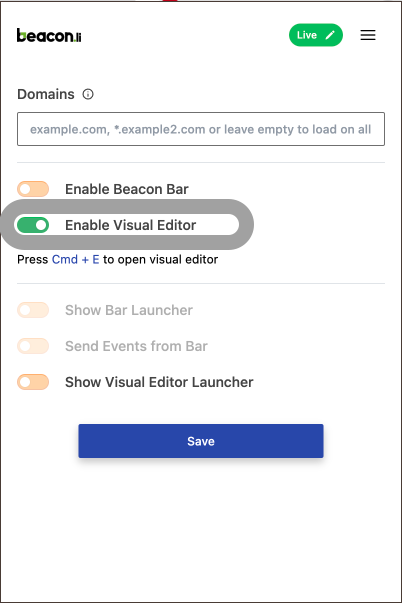
In the "Domains" field, input the website domain to activate the extension on your site. If you wish to open it in multiple dashboards, include multiple domains separated by commas, as shown in the screenshot below. Alternatively, if you want the extension to open in all tabs, leave the field empty.
Activate the visual editor and click "Save" to make the editor visible.
Enable the "Show Bar Launcher" and "Show Visual Editor Launcher" options to display icons at the bottom right. You can then customize the placement of these icons by dragging them according to your preferences. You can close these launcher icons by clicking on the cancel icon, which becomes visible upon hovering.
Click on these launcher icons to display the editor and bar, or alternatively, use "Command + K" or "CTRL + K" for the bar and "Command + E" or "CTRL + E" for the visual editor.
Within the Beacon Bar tab, you have the capability to create or edit actions. Additionally, you can preview the UI and functionality of smart journeys by clicking on the play icon in your dashboard.
To learn how to create commands, [click here](https://docs.beacon.li/how-to-create-commands). For guidance on creating smart journeys, [click here](https://docs.beacon.li/journeys-guides).
Within the Engagement tab, you can create modals, tooltips, banners, and survey forms. Additionally, you have the capability to add a workflow by connecting all these modules.
Click the links below to learn how to create or edit all these modules.
[Announcements - Modals/Slide Outs](https://docs.beacon.li/)
[Highlights - Tooltips / Hotspots](https://docs.beacon.li/highlights-tooltips-hotspots)
[Announcements - Banners/Info-Island](https://docs.beacon.li/announcements-banners-info-island)
[NPS\&Forms - Surveys](https://docs.beacon.li/nps-and-forms-surveys)
[Journeys - Work Flows](https://docs.beacon.li/journeys-flows)
# How to create commands using Editor Extension?
[Click here](https://chrome.google.com/webstore/detail/beaconli/mmclgbikmomngmmilcjodlhfipikjeji?hl=en) to install the Beacon Editor extension.
In the "Domains" field, input the website domain to activate the extension on your site. If you wish to open it in multiple dashboards, include multiple domains separated by commas, as shown in the screenshot below. Alternatively, if you want the extension to open in all tabs, leave the field empty.
Activate the visual editor and click "Save" to make the editor visible.
Enable the "Show Bar Launcher" and "Show Visual Editor Launcher" options to display icons at the bottom right. You can then customize the placement of these icons by dragging them according to your preferences. You can close these launcher icons by clicking on the cancel icon, which becomes visible upon hovering.
Click on these launcher icons to display the editor and bar, or alternatively, use "Command + K" or "CTRL + K" for the bar and "Command + E" or "CTRL + E" for the visual editor.
You also have the option to generate commands through our Chrome extension.
Proceed to the "Actions" section where you can find a list of previously created actions, if any. To generate new commands, click on the "Create New" button located in the top-right corner.
To click on a specific element, utilize the magic tool by selecting and clicking on the desired element. This will automatically populate details such as command name, path, and selector type. The selector type is determined based on priority – if data-beacon-id is present, it takes precedence; if not, it checks for id. If neither data-beacon-id nor id is available, className + xpath will be filled.
Subsequently, you can select "Add Sub Action" if you wish to incorporate multiple actions for the same command.
The extension allows you to include video, link, and click action types.
* Link Action type : This action type provides options for choosing a static path, dynamic path, or external link.
* **Video Action type :** This enables you to incorporate any video link, including links to YouTube videos.
* **Click Action type :** In this action type, you can input a static or dynamic path and select a selector type such as className + xpath, id, or data-beacon-id. It is recommended to use the magic tool directly for selecting an element to click, as it automatically populates all the element details.
After navigating to a page using the link or click action type, you can incorporate multiple actions by adding sub-actions. Simply click on the "Add Sub-Action" button and employ the magic tool to select element data.
In sub-action choose your preference, such as "scroll to" for upward scrolling to the selected element, "focus on" to concentrate on the selected element, and "click on" to initiate a click on the selected element. Furthermore, you can remove added sub-actions by clicking on the delete icon.
In the keywords input field, input words that your users commonly use as alternative terms for the command you've created. To add a keyword, type it in and press Enter. You can add multiple keywords in this manner.
Enable GR, CR, or CO as per your specific requirements.
1. **Global Recommendation (GR) :** It can be enabled for only 8 commands. These 8 recommended commands will appear at the top of the list of commands in the bar, before a user searches.
2. **Context Recommendation (CR) :** It can be enabled for 8 commands in every context. These 8 recommended commands will appear at the top of the list of commands in the bar, before a user searches when invoked in that context/section of the app.
3. **Context Only (CO) :** Enabling context only restricts the availability of the command to just the context it is created in. This does not assign any higher priority to the command. It only restricts the command availability.
Following that, you can choose the created rules from the select dropdown. These rules are employed to limit the visibility of your command to specific users or pages, depending on the type of rule you have established. Alternatively, achieve the same outcome by adding metadata as key-value pairs. Click the "Add" button to include multiple metadata key-value pairs, and utilize the delete icon to remove them as needed.
Once you've made all the required modifications, click the "Create" button. You can then make further edits from the list using the edit icon and utilize the delete icon to remove them as needed.
Select the filter icon to sort commands using categories or criteria like GR, CR, CO, or based on the path. To remove the filter, click the filter icon again, and then click on "Clear" followed by the "Apply" button.
# How to setup SDK?
Welcome to the integration guide for the Beacon SDK. This document will walk you through the process of connecting the Beacon SDK to your website.
Integrate the Beacon SDK into your website by following these steps or simply use "npm i @beacon.li/bar" for seamless implementation.
#### Step 1: Copy the Script
Copy the following script and paste it into the `` of every page you wish to have beacon bar.
```javascript
```
#### Step 2: Replace YOUR\_ORG\_ID
On the Beacon dashboard's overview page, you can find organization IDs for both the sandbox and live environments. Choose your preferred environment and replace "YOUR\_ORG\_ID" with the corresponding ID.
#### Step 3: Save and Deploy
Save your changes and deploy your website with the updated code.
### Testing:
To ensure successful integration, visit your website in a browser and use the keyboard shortcut "Command + K" (for Mac) or "CTRL + K" (for Windows). The command palette will appear, as illustrated in the screenshot below.
If you already have a function assigned to "Command + K" (for Mac) or "CTRL + K" (for Windows) shortcut, you can modify the Beacon shortcut in the Beacon dashboard. To make changes, navigate to Config > Bar Config > Bar Shortcuts. For both Mac and Windows, click 'x' to cancel the current shortcut and enter your preferred shortcut.
If you encounter any issues or have further questions, please refer to the [Developer Docs](https://api.beacon.li/) or you can contact us at
# How to create Product Tours/Flows?
## Product Tours (PT)
A product tour is an interactive onboarding tool designed to guide users through the key features or functionalities of a web page or application. These tours aim to enhance the user experience by providing context-sensitive explanations or walkthroughs for various elements on a page.
Beacon Hybrid Product Tours provide an advanced, customizable, and dynamic solution that addresses the limitations of traditional tours. By integrating features like cross-page navigation, modal support, and enhanced control, these tours redefine the onboarding experience, ensuring users have an efficient and engaging journey throughout the application.
#### Beacon Product Tour Highlights with Hybrid approach:
Beacon Hybrid Product Tour goes beyond the limitations of traditional walkthroughs, offering a dynamic and interactive experience for users. Here's how it stands out:
1. Cross-Page Navigation\
Unlike traditional product tours that are confined to a single web page, our hybrid product tour allows users to seamlessly navigate across connected pages. This ensures a unified and comprehensive onboarding experience.
2. Enhanced Control\
Administrators can define who sees the tour, where it appears, and when it is triggered. This level of customization ensures that the tour is contextually relevant and user-specific.
3. Modal Integration\
The hybrid system supports the addition of modals—popups, pages, or feedback forms. These can be used to:
* Collect user feedback.
* Showcase forms for additional input.
* Provide detailed explanations or additional resources.
4. Versatility and Expansion\
The ability to integrate modals, navigate across pages, and customize the user experience makes the hybrid product tour ideal for complex web applications with interconnected workflows.
#### Brief of Creation and Management
The creation of product tours, along with adjustments to their functionality, can be handled via the Beacon extension & dashboard. Here’s how it works:
1. Client-Side Creation
Using the Beacon extension, administrators can design product tours directly on their applications interface.
Customization options include:
* Designing the look and feel of the product tour.
* Adding tooltips, modals, and other interactive elements.
2. Dashboard Adjustments
From the Beacon dashboard( Engagement > Journeys > Product Tour ), administrators can:
* Adjust settings like delay times between tooltips.
* Configure triggers for invoking specific tours.
* Manage user-specific visibility.
* Changes made through the dashboard can also be applied via the client-side editor.
* Only a few changes can be done through the dashboard, remaining all should be done only through the extension in the front end.
Note: Since most of the options remain the same across different scenarios, there will be some repetition. This is intentional, allowing users to start from any scenario based on their specific requirements.
## **Using Beacon Editor**
Steps to initiate “Create product tour”\
Ensure the latest Beacon extension is installed and that the Beacon Bar & Visual Editor are enabled.
Note: Enabling this will activate the Beacon-related features on your Website/application.
1. Navigate to the “footer section” of the page to locate the Beacon Visual Editor as shown in the above image.\
2. In the footer section we can navigate to creation of flows page in two ways.\
To create a “product tour (PT)",\
The first way is to select the “choose existing” button in the footer section which will open a pop-up window, and in that pop-up window choose “Flows”. This will open an editor which consists of existing product tours as well as options for creating new ones.
Note: Do not modify the “Dropdown” on the editor page, as it is set to “flows” by default. If changed, it will navigate to different feature lists within the same pop-up window based on the selection.
Another way of navigating to the flows page is in the footer section we can find the “Create” button. On clicking this will open a popup window from that choose “flows” that will navigate to the same editor flows page as above in that we can find the existing product tours as well as creation for new ones.
3. After clicking on the “create” button in the editor will open a popup page, where the user has to select some options such as modal, tooltip, actions and surveys, from it.
4. By selecting “tooltip” will open the existing saved designed tooltips templates or an option for creating from scratch. As this will be applicable for the “modals” and “surveys” also. But in the case of “actions” this is used for adding a navigation for the state.
### When Opted for “Default Template” Option:-
1. Selecting the “Default Template” will navigate you to the “Create Page,” pre-configured with the default settings of the chosen template. The configuration settings of BLOCKS will vary depending on the selected template.
* On selecting the option of “Tooltips” will give the default tooltips templates which are pre-existing and the user can select the desired design from them which will suit the existing web page.
* On Selecting the “Modals” option will give the default modals which are pre-built designs for the modals and users can select among them which will best suit the current page.
* On Selecting the “Surveys” will open a default forms page which will be designed with some input fields if the design and the fields required satisfies with the existing forms then user can select with the existing ones.
* Actions can be incorporated into the product tour to enable seamless navigation between pages, both at the beginning and during the tour itself.
Note :- If none of the pre-designed templates fit their needs, users can create custom designs from scratch for each element by using the option “create from scratch”. The creation of scratch for tooltips and other elements are discussed below.
2. The current screen is divided into three main sections:
* Section 1: Displays the “PT flow frame”, here all the created tour flow will be shown in this section and for enabling the frame we have to click on the info icon in the footer.\
Section. 1.1 Here it is a report message which indicates the element for the tooltip is either not added or the tooltip is not in the page where the path is given.
* Section 2: Shows the “Beacon Editor” pop-up page, which is draggable.
* Section 3: Contains the “The Beacon Editor” toolbar with the “Preview,” and “Publish” buttons.
Here is the image reference for the sections within the creation of the product tour
If Default Tooltip is selected then attributes which have to be given manually.
* After selecting the default tooltip then the tooltip is not automatically displayed we have to select where it should be displayed. (Refer Above point 2,Section. 1.1)
* And after selecting the tooltip there is a report message where it says “navigate to the page and choose the element where you intend to generate a tooltip. Go to the Page” because at the current state there is no path or position set. In order to do that we use “Reselect element”, and the report message will be automatically disabled after selecting the element.
* Here After selecting a default template the tooltip will be displayed under the product tour flow frame where all the tooltips and flow of the product is shown in a tree structure, which will be invoked through the info icon in the center of the section 3.
### SECTION 1: Product Tour Flow Frame
After opening the popup for viewing the flow and there are multiple other options within that. Let us see the options that are available after the creation of the tooltip and within the flow.
1. Add a Group before & Add a Group After: Here with the two add buttons in the top and the bottom of the flow will be used to add a group of tooltips in the top of the flow or in the bottom of the flow.
2. Delete whole flow: Here the delete button in the bottom of the flow will delete all the tooltips that are added.
3. Add button within the tooltip: There are two add buttons within a single tooltip. One in the top of the tooltip and one in the bottom of the tooltip. These are used for adding tooltips in the top or bottom of the specific tooltip. Here with the add button in the bottom of the element will also contain an option of branching which is explained in a detailed way below.
4. Copy Button within the tooltip: There are two copy buttons within a single tooltip. One in the top of the tooltip and one in the bottom of the tooltip. These are used for cloning the same tooltip to the top or bottom of that specific tooltip.
Note: Cloning a specific tooltip to the top or bottom will achieve all the functionalities of the original tooltip and can edit the position and content within the tooltip so that the design will look alike in the entire product tour.
5. Edit : There is an edit in every tooltip where on clicking that will open the specific tooltip in the dashboard and can make changes to the tooltip.
6. Delete within the tooltip: There is a delete button within the specific tooltip where on clicking that will delete the specific tooltip from the product tour.
Note:
1. While editing a tooltip, in the flow that specific tooltip will be highlighted along with the tick mark in the top of the tooltip under the to indicate that the user is editing that specific one in the front end.
2. Once the product tour ‘flow frame’ popup is opened then there is an auto scroll with the popup which will scroll up to the tooltip where the user is currently editing.
3. The whole process of creation of the product tours is an auto saving process and no need to save them manually.
Here is an image for reference of how a flow will be shown after creation in the popup page when clicked on the info icon in the footer section will be visible as
Without Branching, refer below image
With Branching, refer below image
Here is the video referral of working of the flow options in the flow frame.
[Flow Frame options explaination.mp4](https://drive.google.com/file/d/1DrXJ_yZ_SrrdBvt73xeSi55GlicxV2iR/view?usp=sharing) ( Non Voice Video )
### SECTION 2: Beacon Editor
The editor settings for the tooltip are discussed below.
Engagements Tab:
1. Name: Here we have to add the name of the product tour, which will be used for invoking the product tour.
2. Magic Selector: By using this we can select where the tooltip should be displayed. By that it will automatically generate the location of displaying the particular tooltip and also Suggests the auto generated LABEL NAME & DESCRIPTION CONTENT to be displayed within the specific tooltip.
* If Magic Selector is not used then the below fields should be manually filled.
1. Selector Type: In this we have to select the attribute by which we will instruct the tooltip to find the specific element.
Classname+xpath: This is a selector field where we have to give the classname and x-path for the specific element where the tooltip refers to.
Id : we have to give the id for the specific element.
Data-beacon-id: This option is used when no specific attribute is available on the DOM. In such cases, Beacon prompts you to set an attribute with the key ‘data-beacon-id’ and assign it a corresponding value.\
Path: Here in this section we have to select whether the path(url) is static or dynamic and also have to specify the path for the same without domain.
Note: the above discussed field is filled automatically when we use the magic selector and remaining fields will take default values and also if required then we can change according to the requirement.
3. Settings: In this section we have to select the tooltip to trigger “immediately” or else we can add a “Delay in seconds” for triggering of the tooltip, And this setting will apply for the currently selected Tooltip specifically.
4. Offset distance: Through this we can move the tooltip position even after selecting through the magic pen we can change these to adjust accordingly. Most of these are done to achieve accuracy for the placements, which is explained in the next point.
5. Placement: Here we have to mention on which side of the element frame, the tooltip should be shown, there are a total 12 positions.
6. Padding: Here we can adjust the padding for the over all tooltip here. We can give the four sides the same padding or else each side as required.
7. Width: Here we can set the overall width for the tooltip
8. Box: the options inside this will be “color” or “image”\
→ by selecting color we can give a background color for the tooltip as well as the border radius and\
→ if we select the image then there is an option to upload the image as well as to set up the border radius for the tooltip.
9. Overlay: This option is used to blur the background and to show only the tooltip highlighted in the page. And to avoid the user interactions between the flow. ( This is handled on each tool tip level only. )
10. Stroke: Here we can add the border stroke for the tooltip and as well as the border color for the same.
Here is the video referral for the engagement settings for the tour
[Engagements Tab working and fields for the tour.mp4](https://drive.google.com/file/d/1PH-RxdUIzGIw_J6SlmYGl6jyXIP-GwAS/view?usp=sharing) ( Non Voice Video )
Flow Settings Tab:
Flow settings which will be used while creating the product tours. These have to be given for the tooltip after the general settings. The flow settings include the following.
1. Who: This field allows you to define the segmentation for determining which users will see a specific product tour. Segmentation can be configured both through the dashboard and the client-side editor. By setting segmentation criteria, you can restrict access, ensuring only the targeted users can view the product tour.
Settings > Who specifies the audience for the modal:
* “Everyone” radio button: Enables the modal for all users of the application.
* “Segment” radio button: Restricts the modal to specific users or user groups based on defined “Segment” rules within Beacon.
Segmentations are defined based on application requirements and function as rules with various conditions to determine "who should see" the product tour and "who should not."
2. Where: This field specifies the pages where the product tour should appear. You can configure this setting through the client dashboard, enabling you to target specific pages or sections of your application. By defining the "where" criteria, you ensure the product tour is displayed only on the relevant pages, providing a tailored user experience.
Settings > Where determines where the modal is shown:
* “Everywhere” radio button: Displays the modal on any page within the application.
* “Segment” radio button: Restricts the modal to specific pages or URLs based on defined “Segment” rules.
Segmentations are defined based on application requirements and function as rules with various conditions to determine "where to show" the product tour and "where not to show".
3. When: This field is used to set up the when to trigger the particular product tour means on clicking some element on opening a specific client page and all other trigger related issues are set here. These settings can also be set from the dashboard as well as the editor from the user end. This particular field contains multiple sub fields which will be used to set up with the product tour.
Settings > When provides options to customize the display timing of the modal:
1. Frequency: Determines how often the PT is shown to users, such as the number of appearances per day, as well as with the user.
* Number of Times per user: Specifies the total number of times the PT can appear for a user login to the specific account.
* Number of Times per Day: Here we specify the number of times a PT will be visible to the user on the specific day.
* Delay in Seconds: Defines the time delay between each appearance within the set frequency.
2. Trigger: Controls when the PT is activated:
* Immediately: Displays the PT right away based on the configured settings.
* Delay: Shows the PT after a defined time delay.
* On Event: Activates the PT when a specific event is triggered.
3. Till: Sets the duration for displaying the PT:
* Number of Times per User: Limits how many times an individual user will see the PT.
* Number of Days: Defines how long the PT remains active and visible to users.
Here is the video referral for the flow settings within the tour.
[Flow settings tab for a tour.mp4](https://drive.google.com/file/d/118gdt7JogOq0VdVXpHqHVlawfJdZiqCb/view?usp=sharing) ( Non Voice Video )
Note: If the tooltip is cloned from one tooltip then the flow settings for the second tooltip will automatically set and otherwise if we changed the whole tooltip then we have to update the flow settings for the tooltip.
### SECTION - 3 : The Beacon Editor Toolbar
The footer section mainly consists of three parts which are choose existing, info bar and preview and publish button.
Choose Existing: It is basically a drop down which is used to switch between the flows of any other feature within the beacon, in this dropdown we can find the features that are editable within the editor are shown here.\
Here above is the image reference where the dropdown popup page is visible when clicking on the choose existing in the footer section.
Flow Frame invoking Section : On clicking the info icons in the footer section will open the “section 1” popup page where we can find the flow that is present within the specific tour.
Preview: Here by this button we can check with the execution of the product tour when it is in draft state, if we confirm the tour is working fine in preview then we can make it “public”. If we want to stop execution of the tour in preview then the close preview button will appear while executing.
The image reference for the preview execution and the close preview.
Publish: Here through this button we can make a particular tour live (Public). If a particular tour is live then in the place of the “publish” we will find it with the “unpublish” button.
Here is the video referral for the footer section which will be visible for every tour.
[Footer Section explaination.mp4](https://drive.google.com/file/d/166TJy6QEyKaAwdxKkvFIn--7CnoIoWnw/view?usp=sharing) ( Non Voice Video )
### When Opted as “Create From Scratch” : -
1. When opted for “Create From Scratch”, then this will lead to the “Create Page” & its basic configs as default.
2. The current screen will contain 3 Major sections.
1. Section 1: Here the flow for the tour will be shown, in the initial state the element that can be added within the tooltip is shown in this section.
2. Section 2: Right side of the screen, “The Beacon Editor - Pop-up page” which is drag-able.
3. Section 3 : At the footer “The Beacon Editor” - with current section “Preview”, “Save” and “Publish” Buttons.
In the process for creating a tooltip from scratch then first of all we have to use the magic selector to select the element and after selection we can design with the tooltip. The creation of tooltip will involve the following steps and when the magic selector is used then the auto generated content will be shown which will be used as content in the tooltip as description.
1. After the selection of the tooltip from the popup page which will appear after clicking on create in the editor, then there are multiple options for designing a single tooltip. Let us discuss in one by one
2. The types of blocks that can be added inside a tooltip can be:
1. Text Block: To insert content or text.
2. Header Block: To add header content or text.
3. Button Block: To include buttons.
4. Image Block: To insert images.
5. Video Block: To embed videos.
6. Embed Block: To include website content or specific URLs.
7. HTML Block: To write custom HTML code for a specific block and design the modal accordingly.
8. Select: To add a selection of one option within multiple elements in the tour itself
9. Attachments: Here we can provide an option for adding files with the tour.
Let us discuss in detail about how a block can be used while the creation of the tooltip.
Here is an image of the fields that can be used to create a tooltip from scratch.
Text Block: This particular block is used to add the text in the tooltip that is used as a description block for the tooltip.
Header Block: This is also a text block that is used as a heading block which will be in high font size and used as a headings block for a tooltip.
Button Block: When clicking on the “Button block > Edit (pen icon)”, only the text-related block is highlighted, displaying all associated settings along with an “Editing Widget”.
1. Available Editing Options: The following settings can be modified:
1. Font size
2. Font color
3. Button alignment
4. Button background color
5. Button padding
6. Button border configurations
7. Button actions
8. ‘Block’ background color
9. ‘Block’ padding
10. ‘Block’ margin
11. ‘Block’ alignment
2. With the “Button Actions” option we can apply action such as
1. Command : (Mostly Used)
1. This option allows the user to select from “pre-defined actions”.
2. When the button is clicked, the specified action is executed (e.g., navigating to another page, opening a new pop-up page, etc.), based on the command configuration.
3. These actions are defined within the beacon for specific applications or clients.
4. These are not default suggestions but are manually configured and shown as dropdown options.
2. Help : Allows users to connect to their documents that are synced with the beacon. These are not default suggestions but are configured manually and shown as dropdown options. Users can also search for specific documents to show when a user takes an action.
3. Modal : Enables users to select and connect to another created modal within the beacon.
4. Tooltip: Provides the option to select and connect to a created tooltip within the beacon.
5. Flow ; Allows selection of a created flow (e.g., a product tour or a journey of specific featured pages) and connects to it.
6. NPS (Net Promoter Score) or Survey Forms: Users can select and connect to an NPS survey form to record analytics within the beacon.
7. Next: (Mostly Used) Provides an action to proceed to the next step or section.
8. Submit: (Mostly Used) Allows the action “Submit & Close” for the modal.
9. Back : (Mostly Used) Enables the action to go “Back” from the current state of the modal.
10. Skip: (Mostly Used) Allows users to “Skip” the current flow of the modal, if applicable.
11. Skip Group: Provides the option to “Skip” an entire group if there are further connections . ( If a modal is connected to another modal or any other flow etc)
12. URL: Allows placement of a URL as needed.
3. Image Block: Here in this particular block users can add the image to the tooltip. This image in this field can be uploaded through two ways one is just by giving the image url and another way is to upload the image from the system.
4. Video Block: Here this block is used to insert a video within the tooltip. This is done by inserting the url of the video.
5. Embed Url: This block is for adding a url within the tooltip. After clicking on it will navigate to the url.
6. HTML Block: This is for designing the tooltip using the html code. The code given within the block will appear in the front end.
7. Select Block: This will be used to add a section for the selection of the choice from the provided options from the user. Here we can provide a label and key and options for the selection. Those will be shown as the selection field in the front end and that selected is stored for that particular field through the key in that field.
8. Attachments: This section will be used for the adding a section in the front end where users can upload a file which will be saved in that product tour. This block will be used for creating the attachments block.
Here is the video referral with all the fields that are used while creating a tooltip from scratch is shown below
[creating tooltip from scratch.mp4](https://drive.google.com/file/d/1-j2HBXQgFGAsGwVw8mHV-vChnsUTDPMi/view?usp=sharing) ( Non Voice Video )
Note : After creating a specific tooltip using the above ways then the whole process which is discussed above, when a tooltip is selected default will be applicable here after adding the tooltip
Branching
Branching introduces conditional logic into product tours, similar to "if-else" statements in programming. This feature allows a single step (or block) to connect with multiple subsequent steps based on user actions or predefined triggers. By doing so, branching offers a more interactive and context-aware experience, guiding users through different workflows based on their choices or actions.
### How Branching Works in our Product Tours
1. Single Block to Multiple Blocks
* A single tooltip, modal, or any other interactive element can lead to multiple follow-up elements.
* For example, a tooltip can have two action buttons, each leading to a different set of tooltips or modals, creating unique pathways.
2. Using Modals, Surveys, or Tooltips in Branching
* Elements like modals, survey forms, or tooltips can be added to a branching structure.
* Example:
* A tooltip contains two buttons:
* Clicking the first button opens a modal with a survey form.
* Clicking the second button triggers another tooltip guiding the user to a different section.
3. Choice-Based Actions
* Choice Actions are used to define branching logic.
* A tooltip or block can include multiple action buttons, each associated with a specific branch name.
* When a user clicks a button, the system evaluates the choice and directs the user to the corresponding branch's content.
4. Branch Name Field
* The Branch Name Field is used to define and link specific branches to user actions.
* By assigning a branch name to each choice, the product tour ensures the correct sequence of elements is displayed based on the user's selection.
Here is the video reference for how a branching flow can be created and how it will work.
[Branching Creation within the dashboard.mp4](https://drive.google.com/file/d/1Z5ZMqAcHrcfjv4n5LMKjxZTh2V4nA4ty/view?usp=sharing) ( Non Voice Video )
#### Example of Branching in Product Tours
* Scenario: A tooltip explains the settings menu and offers two buttons:
1. "Learn About Account Settings"
* Clicking this opens a modal with detailed instructions and forms related to account settings.
* After closing the modal, the tour continues with relevant tooltips about account settings.
2. "Learn About Notification Settings"
* Clicking this invokes another branch, starting a new sequence of tooltips guiding the user through notification settings.
* Implementation Steps:
1. Add the tooltip as the base block.
2. Include two buttons with Choice Actions (e.g., "Account Settings" and "Notification Settings").
3. Link the respective branch names (e.g., "Account\_Branch" and "Notification\_Branch") to each button.
4. Create and associate the content blocks (tooltips, modals, forms) for each branch.
#### Benefits of Branching in Product Tours
1. Personalized Experience: Users only see content relevant to their actions or preferences.
2. Flexibility: Complex workflows can be broken down into manageable, interconnected paths.
3. Improved Engagement: Interactive tours keep users engaged by adapting to their needs.
4. Efficiency: Users quickly find what they need without navigating through irrelevant steps.
Here through the add button in the specific tooltip we can add the branching with the same and also we can add up with another element like modals or survey or tooltip of different designs.
NOTE:
* Here we can create a product tour for the forms in the dashboard in another way, which may be “AUTO GENERATED PRODUCT TOUR” here we have to train the particular form and during the form train we have to enable Toggle of “Create auto product tour” by this the auto product tour will be created and within that we can edit accordingly. This auto product tour will only be applicable for the forms within the dashboard.
* While creating the auto product tour user has to go through the form training for invoking the form training bar press cmd+B or ctrl+B. Then the form train popup will be visible after that select the entire form and after that provide with the command creation for that specific path and enable the toggle. Then by saving it will create the auto product tour.
Here is the video reference link of how an auto generated tour will be formed after the form training.
[Auto generated product tour .mp4](https://drive.google.com/file/d/1lQejcThMbb-4BPdnxfRQR5hgvxe-hW3m/view?usp=sharing) ( Non Voice Video )
* Once a product tour is made live then the user cannot edit with the content in the tooltips and also adding with the new tooltips within the same product tour is not possible.
* The changes which are under the engagement and flow settings in the editor can be done even after the product tour is made live.
Here the below video reference link of how edit will not be able to be done after made public and also the engagement and flow settings can be changed.
[Editing Option disabled after it has made live.mp4](https://drive.google.com/file/d/1md03aVnNLfG-37Px1pRcUJx131J7WByT/view?usp=sharing) ( Non Voice Video )
* If we want to make changes within that only then there is a way doing that which will clone the product tour either from the beacon dashboard or the editor which is opened in the front end.
Here is the video reference for cloning a specific product tour and changing the changes within the product tour.
[product tour cloning from existing one.mp4](https://drive.google.com/file/d/162n-kOIyaFydEIpWvS0jtWrwMKBzh2tJ/view?usp=sharing) ( Non Voice Video )
* Product tours can also be linked to User Guides by using the Button Block. Set its action type to 'Flow' and choose a pre-configured product tour from the dropdown menu.
* Creating a product tour for mobile view follows the same process as for desktop. However, we recommend users create flows (product tours) using the ‘Tab view’, as it accommodates mobile views effectively. And make sure on the mobile view tooltip width to be 320px max for optimal display.
* Lastly, please ensure that the configurations align with the requirements, particularly the segmentation and triggering of the flows (Product Tours). These should be thoroughly reviewed before making the tours live for end users. Additionally, most tooltip positions will adjust as needed, provided that unique attributes (such as ID, name, etc.) are correctly assigned to the specific elements.
The product tour cloned from the original one will be in the private state first and we can edit with the changes as per requirement.
## **Using Beacon Dashboard**
Steps to Initiate “Create Product Tour”
1. Verify Access Permissions\
\
Ensure you are an admin or a user with access to the Beacon Dashboard for your application.\
\
Note: If you lack access, request the admin to add you as a member by navigating to:Beacon Dashboard > Settings > Team > Add Member.\
2. Log In to the Beacon Platform\
\
Visit[ https://app.beacon.li/](https://app.beacon.li/) and log in using your email ID. An OTP will be sent to the provided email for verification (if access has been granted).\
3. Navigate to the “Product Tour” Section
* Go to Engagements > Journeys > Product Tour.
* This will take you to the “Product Tour List” page.
Click on the “Create Product Tour” button to open the side pop-up page.
\
Settings that can be done through the Dashboard\
Changes that can be made for product tours (PT) through the dashboard are listed below.\
NOTE : We Always Recommand to create the product tours or Engagement/DAP (Digital Adaption Platform) related features from the “Beacon Editor”.
* A Product tour can be created through dashboard and only few changes that can be changed through the dashboard are given below as section wise.
The product tour page in the dashboard when visited with ‘create product tour’ for the first time is shown below.
### SECTION 1: Main Navigation Bar
1. The "Main Navigation Bar" in Section 1 includes the following options: Save, Menu, and a Status dropdown button.
2. Save: Use this button to save any changes you have made.
3. Status Dropdown: This menu allows you to set the visibility of your content with the following options:
* Public: Live for everyone as per behaviour settings.
* Private: Can be invoked only through chrome extension
* Unlive: To remove from public
* Draft: To save your work in progress
4\. Menu: it has the option to Duplicate & Delete buttons.
* Duplicate : will duplicate it.
* Delete : will delete with conformation.
Note: Once a PT is live, it cannot be edited directly. However, users can clone an existing PT, make changes, and ensure the older version is unpublished. Editing is only allowed before publishing.\
### SECTION 2: Beacon Editor section
The above shown fields from the dashboard can be changed from the dashboard. The fields which are shown in section 2 from the dashboard are explained below.
* Name: In this field the name of the product tour is given. If the product tour is created through the dashboard then the product tour is created which will be shown in the editor for that specific product tour with the name specified. For editing the product tour we have to open the flows from the editor in the client and has to open the product with the name created through the dashboard
* Who: This field allows you to define the segmentation for determining which users will see a specific product tour. Segmentation can be configured both through the dashboard and the client-side editor. By setting segmentation criteria, you can restrict access, ensuring only the targeted users can view the product tour.
Settings > Who specifies the audience for the modal:
* “Everyone” radio button: Enables the modal for all users of the application.
* “Segment” radio button: Restricts the modal to specific users or user groups based on defined “Segment” rules within Beacon.
Segmentations are defined based on application requirements and function as rules with various conditions to determine "who should see" the product tour and "who should not."
* Where: This field specifies the pages where the product tour should appear. You can configure this setting through the client dashboard, enabling you to target specific pages or sections of your application. By defining the "where" criteria, you ensure the product tour is displayed only on the relevant pages, providing a tailored user experience.
Settings > Where determines where the modal is shown:
* “Everywhere” radio button: Displays the modal on any page within the application.
* “Segment” radio button: Restricts the modal to specific pages or URLs based on defined “Segment” rules.
Segmentations are defined based on application requirements and function as rules with various conditions to determine "where to show" the product tour and "where not to show".
* When: This field is used to set up the when to trigger the particular product tour means on clicking some element on opening a specific client page and all other trigger related issues are set here. These settings can also be set from the dashboard as well as the editor from the user end. This particular field contains multiple sub fields which will be used to set up with the product tour.
Frequency: Here we can select the frequency
Settings > When provides options to customize the display timing of the modal:
* Frequency: Determines how often the PT is shown to users, such as the number of appearances per day, as well as with the user.
* Number of Times per User: Indicates the maximum number of times the PT can appear to an individual user after logging into their account.
* Number of Times per Day: Defines the total number of times the PT will be shown to a user on a given day.
* Delay in Seconds: Sets the time interval between consecutive appearances within the defined frequency.
* Trigger: Controls when the PT is activated:
* Immediately: To display the PT right away based on the configured settings.
* Delay: Shows the PT after a defined time delay.
* On Event: Activates the PT when a specific event is triggered.
* Till: Sets the duration for displaying the PT:
* Number of Times per User: Limits how many times an individual user will see the PT.
* Number of Days: Defines how long the PT remains active and visible to users.
The above all settings can be done through the dashboard as well as the editor from the front end and can be found under flow settings in the editor.
The specific ones which are only applicable to change with the editor are shown in the below tab.
Here is the video reference for the changes that can be made through the beacon dashboard.
[Dashboard side settings for the product tour.mp4](https://drive.google.com/file/d/1XXJiRXAmGUySwznvw4Fw8aNs2_Gxfzju/view?usp=sharing) ( Non Voice Video )
After updating the changes from the dashboard then we have to move further changes from the front-end editor.\
\
\
\
Note: If you have any questions, please don't hesitate to reach out to us at ****
# How to create Modals/Slide-Outs?
Beacon Modal Documentation
Beacon ‘Modals’ and ‘slide-outs’ provide a versatile solution for Beacon clients to design and customize pop-up pages tailored to their unique needs. These tools are perfect for announcing updates, launching campaigns, sharing informative content, or delivering personalized greetings, empowering clients to engage users effectively within their applications.
With the Beacon modal, users can take customization to the next level by incorporating a diverse set of blocks into their modals and slide-outs. These blocks include:
* Text Blocks: Add detailed descriptions, key messages, or engaging content directly to the modal or slide-out.
* Heading Blocks: Highlight titles, announcements, or important updates with bold and customizable headings.
* Button Blocks: Include call-to-action buttons for actions like "Learn More," "Sign Up," or "Get Started," driving user engagement.
* Video Blocks: Embed videos to share tutorials, promotional content, or visual storytelling.
* Embedded Blocks: Integrate external content such as forms, maps, or other web elements seamlessly.
Additionally, users can start with default templates provided by the platform and customize them further to suit their specific requirements. This feature saves time while offering the flexibility to modify layouts, styles, and content, ensuring that the final design perfectly aligns with the intended purpose.
This powerful combination of editable templates and diverse block options allows clients to create modals and slide-outs that deliver rich, interactive, and personalized user experiences effortlessly.
Note: Since most of the options remain the same across different scenarios, there will be some repetition. This is intentional, allowing users to start from any scenario based on their specific requirements.
## Using Beacon Editor
From the Using Beacon Editor: This means that on the client application with the Beacon Extension, users can leverage the “Modal/Slide-out” feature to create or edit modals for their “End Users” within their application using Beacon editor.
Steps to initiate “Create Modal / Slide out”:
1. Ensure the latest Beacon extension is installed and that the Beacon Bar & Visual Editor are enabled.
Note: Enabling this will activate the Beacon-related features on the client’s website/application.(As Beacon related script will be associated with client application.)
[Initiation of \_Create Modal\_ from the User End.mov](https://drive.google.com/file/d/1UOoe6nykFPBzKKnmYwCMYV1sfaPoLIZ4/view?usp=sharing) ( Non voice video )
2. Navigate to the “footer section” of the page to locate the Beacon Visual Editor.
3. To create a “Modal,” select either “Choose Existing” or “Create.”
4. In the pop-up window, choose “Engagements > Modal.”\
\
Note: After making a selection, a draggable pop-up window will appear. This window will display all previously created modals/slide-outs and include a “Create” button.\
5. Click the “Create” button to start the “Modal/Slide-out” creation process. This will redirect you to the creation page.\
\
Note: 1. Do not modify the “Dropdown” on the pop-up page, as it is set to “Modal” by default. If changed, it will navigate to different feature lists within the same pop-up window based on the selection.
### When Using the “Default Template” Option
1. Selecting the “Default Template” will navigate you to the “Create Page,” pre-configured with the default settings of the chosen template. The configuration settings will vary depending on the selected template.
2. The current screen is divided into three main sections:
* Center: Displays the “Selected Template.”
* Right: Shows the “Beacon Editor” pop-up page, which is draggable.
* Footer: Contains the “Beacon Editor” toolbar with the “Preview,” “Save,” and “Publish” buttons.
### Section 1:- Modal Template section
1. Section 1 represents the main modal that can be edited to meet specific requirements.
* It is organized into “BLOCKS”, and additional blocks can be added as needed.
1. The types of blocks that can be added include:
* Text Block: To insert content or text.
* Header Block: To add header content or text.
* Button Block: To include buttons.
* Image Block: To insert images.
* Video Block: To embed videos.
* Embed Block: To include website content or specific URLs.
* HTML Block: To write custom HTML code for a specific block and design the modal accordingly.
As an example, consider the selected template in Section 1. This template is divided into three blocks:
1. Image Block
2. Text Block
3. Button Block
4. Each block comes with options such as “Edit” for modifying the current block, available at the center of the block, and “Add” for adding new blocks, accessible on the right side and bottom of the current block.\
5. Image Block: Clicking the “Edit” button (represented by a pen icon) for the Image Block opens a pop-up page and activates the “Editing Block” option as a separate widget.
* Here, you can upload an image by either pasting the image URL or using the “Upload” button to select a file from your system.
* A preview of the uploaded image will be displayed.
* After the image is uploaded, you can adjust specific settings for the block, including “Padding,” “Margin,” “Section Border Color,” and “Alignment”.
* After the image is uploaded and CSS settings are applied,
* Use the “Right” button to save changes and exit the “Edit” mode for the current block.
* Alternatively, you can use the “Close” icon to exit without saving.
* And the “Delete” icon to remove the current block, which will prompt a confirmation pop-up.
Note: The “Editing Widget” option is common for all block types.\
EDITING WIDGET
3\. Text Block: Clicking the “Edit” button (pen icon) on the Text Block highlights only the text block and displays all relevant settings, including the “Editing Widget.”
1. This allows you to input and format the text within the block, arranging the content according to your needs using the available settings. (Refer to the video below for details on the available options.)
4\. Button Block : When clicking on the “Button block > Edit (pen icon)”, only the text-related block is highlighted, displaying all associated settings along with an “Editing Widget”.
Available Editing Options: The following settings can be modified:
1. Font size
2. Font color
3. Button alignment
4. Button background color
5. Button padding
6. Button border configurations
7. Button actions
8. ‘Block’ background color
9. ‘Block’ padding
10. ‘Block’ margin
11. ‘Block’ alignment
12. With the “Button Actions” option we can apply action such as
2\. Command :
This option allows the user to select from “pre-defined actions”.
1. When the button is clicked, the specified action is executed (e.g., navigating to another page, opening a new pop-up page, etc.), based on the command configuration.
2. These actions are defined within the beacon for specific applications or clients.
3. These are not default suggestions but are manually configured and shown as dropdown options.
\*\*Help :\*\*
* Allows users to connect to their documents that are synced with the beacon.
* These are not default suggestions but are configured manually and shown as dropdown options.
* Users can also search for specific document as to show when user takes a action.
\*\*Modal:\*\*
* Enables users to select and connect to another created modal within the beacon.
\*\*Tooltip:\*\*
* Provides the option to select and connect to a created tooltip within the beacon.
\*\*Flow:\*\*
* Allows selection of a created flow (e.g., a product tour or a journey of specific featured pages) and connects to it.
\*\*NPS (Net Promoter Score) or Survey Forms:\*\*
* Users can select and connect to an NPS survey form to record analytics within the beacon.
\*\*Next:\*\*
* Provides an action to proceed to the next step or section.
\*\*Submit:\*\*
* Allows the action “Submit & Close” for the modal.
\*\*Back:\*\*
* Enables the action to go “Back” from the current state of the modal.
\*\*Skip:\*\*
* Allows users to “Skip” the current flow of the modal, if applicable.
\*\*Skip Group:\*\*
* Provides the option to “Skip” an entire group if there are further connections . ( If a modal is connected to another modal or any other flow etc)
\*\*URL:\*\*
* Allows placement of a URL as needed.
### Section 2 :- Beacon editor Frame
1. In Section 2, options are provided for managing the overall behavior, CSS, and positioning settings.
2. Under “Type,” users can choose the desired modal type, either “simple modal” or “Slide-out.”
3. The “Name” field allows users to name their modal.
4. There are two main tabs: “Styles” and “Settings”.
#### Under Styles Tab
1. If the “Type” is set to “Slide-out,” this additional option under Styles > Animated are available, including radio buttons for “Slide” and “Fade” animations (refer to Section 2, point 2).( Option is Only for Type = Slide-out)
2. The options in Styles > Placement allow users to set the modal’s position on the screen.( Option is for BOTH type)
3. Styles > Dismiss (Close button) provides options for positioning the “Close” icon.( Option is for BOTH type)
4. Styles > Padding allows users to configure the modal’s padding.( Option is for BOTH type)
5. Styles > Width & Height enables users to set the modal’s width and height.( Option is for BOTH type)
6. Styles > Box includes:( Option is for BOTH type)
* Radio buttons for:
* Color: Sets the background color of the modal.
* Image: Allows users to add a background image.
* Options for setting the border radius of the entire modal.
* Styles > Overlay provides options for adding an overlay to the modal. When the ‘Toggle’ button is enabled, only the modal is visible, preventing interactions outside of it.( Option is for BOTH type)
* Styles > Stroke allows users to set the modal’s border stroke.( Option is for BOTH type)
#### Under Settings Tab( Options are common for BOTH type)
1. Settings > Who specifies the audience for the modal:
* “Everyone” radio button: Enables the modal for all users of the application.
* “Segment” radio button: Restricts the modal to specific users or user groups based on defined “Segment” rules within Beacon.
1. Settings > Where determines where the modal is shown:
* “Everywhere” radio button: Displays the modal on any page within the application.
* “Segment” radio button: Restricts the modal to specific pages or URLs based on defined “Segment” rules.
1. Settings > When offers options for display timing:
* Frequency: Sets how often the modal is shown to users, such as the “Number of times per day.”
* Number of times: Specifies how many times the modal should appear per day.
* Delay in seconds: Sets the time delay between each appearance within the specified number of times.
* Trigger: Configures when the modal is to be activated:
* “Immediately”: Shows the modal immediately based on prior settings.
* “Delay”: Shows the modal after a specified time delay.
* “On Event”: Displays the modal when a specific event occurs.
* Till: Sets the duration for showing the modal to users:
* “Number of times per user”: Limits the total number of times a user sees the modal.
* “Number of days”: Specifies the number of days the modal remains active.
### Section 3 : - Beacon editor Tool section.
1. In Section 3, the main “Beacon Editor” provides options such as “Preview,” “Save,” and “Publish” after initiating the “Create Modal” process.
2. Preview: Allows users to view their work within the same screen. To close the preview, hover over the top (header section) and click the “Close” button.
3. Save: Saves any changes made.
4. Publish: Deploys the modal with the configured settings.
Note: Once a modal is live, it cannot be edited directly. However, users can clone an existing modal, make changes, and ensure the older version is unpublished. Editing is only allowed before publishing.
### When Opted as “Create From Scratch” : -
1. When opted for “Create From Scratch”, then this will lead to the “Create Page” & its basic configs as default.
2. The current screen will contain 3 Major sections.
3. Center of the screen, “Allow to Select a Block type” for the initial Block of the Modal.
4. Right side of the screen, “The Beacon Editor - Pop-up page” which is drag-able.
5. At the footer “The Beacon Editor” - with current section “Preview”, “Save” and “Publish” Buttons.
### Section 1:- Modal Template section
Section 1 represents the main modal that can be edited to meet specific requirements.
* It is organized into “BLOCKS”, and additional blocks can be added as needed.
The types of blocks that can be added include:
* Text Block: To insert content or text.
* Header Block: To add header content or text.
* Button Block: To include buttons.
* Image Block: To insert images.
* Video Block: To embed videos.
* Embed Block: To include website content or specific URLs.
* HTML Block: To write custom HTML code for a specific block and design the modal accordingly.
\
\
As an example, consider the selected template in Section 1. This template is divided into three blocks:
4. Image Block
5. Text Block
6. Button Block
Each block comes with options such as “Edit” for modifying the current block, available at the center of the block, and “Add” for adding new blocks, accessible on the right side and bottom of the current block.\
5\. Image Block: Clicking the “Edit” button (represented by a pen icon) for the Image Block opens a pop-up page and activates the “Editing Block” option as a separate widget.\
* Here, you can upload an image by either pasting the image URL or using the “Upload” button to select a file from your system.
* A preview of the uploaded image will be displayed.
* After the image is uploaded, you can adjust specific settings for the block, including “Padding,” “Margin,” “Section Border Color,” and “Alignment”.
* After the image is uploaded and CSS settings are applied,
* Use the “Right” button to save changes and exit the “Edit” mode for the current block.
* Alternatively, you can use the “Close” icon to exit without saving.
* And the “Delete” icon to remove the current block, which will prompt a confirmation pop-up.
Note: The “Editing Widget” option is common for all block types.\
EDITING WIDGET
6\. Text Block: Clicking the “Edit” button (pen icon) on the Text Block highlights only the text block and displays all relevant settings, including the “Editing Widget.”
2. This allows you to input and format the text within the block, arranging the content according to your needs using the available settings. (Refer to the video below for details on the available options.)
7\. Button Block : When clicking on the “Button block > Edit (pen icon)”, only the text-related block is highlighted, displaying all associated settings along with an “Editing Widget”.
1. Available Editing Options: The following settings can be modified:
2. Font size
3. Font color
4. Button alignment
5. Button background color
6. Button padding
7. Button border configurations
8. Button actions
9. ‘Block’ background color
10. ‘Block’ padding
11. ‘Block’ margin
12. ‘Block’ alignment
13. With the “Button Actions” option we can apply action such as
Command :This option allows the user to select from “pre-defined actions”.
1. When the button is clicked, the specified action is executed (e.g., navigating to another page, opening a new pop-up page, etc.), based on the command configuration.
2. These actions are defined within the beacon for specific applications or clients.
3. These are not default suggestions but are manually configured and shown as dropdown options.
[](https://drive.google.com/file/d/1CubOsre_oRxX3HtzAhVF5qK4qwONXPWE/view?usp=drive_link)
\*\*Help :\*\*
* Allows users to connect to their documents that are synced with the beacon.
* These are not default suggestions but are configured manually and shown as dropdown options.
* Users can also search for specific documents to show when a user takes an action.
\*\*Modal:\*\*
* Enables users to select and connect to another created modal within the beacon.
\*\*Tooltip:\*\*
* Provides the option to select and connect to a created tooltip within the beacon.
\*\*Flow:\*\*
* Allows selection of a created flow (e.g., a product tour or a journey of specific featured pages) and connects to it.
\*\*NPS (Net Promoter Score) or Survey Forms:\*\*
* Users can select and connect to an NPS survey form to record analytics within the beacon.
\*\*Next:\*\*
* Provides an action to proceed to the next step or section.
\*\*Submit:\*\*
* Allows the action “Submit & Close” for the modal.
\*\*Back:\*\*
* Enables the action to go “Back” from the current state of the modal.
\*\*Skip:\*\*
* Allows users to “Skip” the current flow of the modal, if applicable.
\*\*Skip Group:\*\*
* Provides the option to “Skip” an entire group if there are further connections . ( If a modal is connected to another modal or any other flow etc)
\*\*URL:\*\*
* Allows placement of a URL as needed.\
### Section 2:- Beacon editor Frame
In Section 2, options are provided for managing the overall behavior, CSS, and positioning settings.
1. Under “Type,” users can choose the desired modal type, either “simple modal” or “Slide-out.”
2. The “Name” field allows users to name their modal.
3. There are two main tabs: “Styles” and “Settings”.
#### Under Styles Tab
4. If the “Type” is set to “Slide-out,” this additional option under Styles > Animated are available, including radio buttons for “Slide” and “Fade” animations (refer to Section 2, point 2).( Option is Only for Type = Slide-out)
5. The options in Styles > Placement allow users to set the modal’s position on the screen.( Option is for BOTH type)
6. Styles > Dismiss (Close button) provides options for positioning the “Close” icon.( Option is for BOTH type)
7. Styles > Padding allows users to configure the modal’s padding.( Option is for BOTH type)
8. Styles > Width & Height enables users to set the modal’s width and height.( Option is for BOTH type)
9. Styles > Box includes:( Option is for BOTH type)
* Radio buttons for:
* Color: Sets the background color of the modal.
* Image: Allows users to add a background image.
* Options for setting the border radius of the entire modal.
4. Styles > Overlay provides options for adding an overlay to the modal. When the ‘Toggle’ button is enabled, only the modal is visible, preventing interactions outside of it.( Option is for BOTH type)
5. Styles > Stroke allows users to set the modal’s border stroke.( Option is for BOTH type)
#### Under Settings Tab( Options are common for BOTH type)
12\. Settings > Who specifies the audience for the modal:
* “Everyone” radio button: Enables the modal for all users of the application.
* “Segment” radio button: Restricts the modal to specific users or user groups based on defined “Segment” rules within Beacon.
13\. Settings > Where determines where the modal is shown:
* “Everywhere” radio button: Displays the modal on any page within the application.
* “Segment” radio button: Restricts the modal to specific pages or URLs based on defined “Segment” rules.
14\. Settings > When offers options for display timing:
* Frequency: Sets how often the modal is shown to users, such as the “Number of times per day.”
* Number of times: Specifies how many times the modal should appear per day.
* Delay in seconds: Sets the time delay between each appearance within the specified number of times.
* Trigger: Configures when the modal is to be activated:
* “Immediately”: Shows the modal immediately based on prior settings.
* “Delay”: Shows the modal after a specified time delay.
* “On Event”: Displays the modal when a specific event occurs.
* Till: Sets the duration for showing the modal to users:
* “Number of times per user”: Limits the total number of times a user sees the modal.
* “Number of days”: Specifies the number of days the modal remains active.
### Section 3 : - Beacon editor Tool section.
In Section 3, the main “Beacon Editor” provides options such as “Preview,” “Save,” and “Publish” after initiating the “Create Modal” process.
1. Preview: Allows users to view their work within the same screen. To close the preview, hover over the top (header section) and click the “Close” button.
2. Save: Saves any changes made.
3. Publish: Deploys the modal with the configured settings.
Note: Once a modal is live, it cannot be edited directly. However, users can clone an existing modal, make changes, and ensure the older version is unpublished. Editing is only allowed before publishing.
## Using Beacon Dashboard
The Beacon Dashboard is a dedicated interface provided to every client of Beacon to manage all available features efficiently.
#### Steps to Initiate “Create Modal/Slide-out”
1. Verify Access Permissions\
\
Ensure you are an admin or a user with access to the Beacon Dashboard for your application.\
\
Note: If you lack access, request the admin to add you as a member by navigating to:Beacon Dashboard > Settings > Team > Add Member.\
2. Log In to the Beacon Platform\
\
Visit[ https://app.beacon.li/](https://app.beacon.li/) and log in using your email ID. An OTP will be sent to the provided email for verification (if access has been granted).\
3. Navigate to the “Modals/Slide-outs” Section
* Go to Engagements > Announcements > Modals/Slide-outs.
* This will take you to the “Modals/Slide-outs List” page.
* Click on the “Create Modal/Slide-out” button to open the side pop-up page.
1. Choose a Template or Start from Scratch\
\
In the side pop-up page, you can either:
* Select a pre-defined template, or
* Choose the “Start from Scratch” option.
### When Using a Default Template option
* If opting for a default template, select either the “Modal” or “Slide-out” template from the list.
* Click on the Continue button in the top-right corner of the side pop-up (titled “Choose Template”).
* This will open the creation page with all customization options enabled.
For detailed instructions on how to customize your modal or slide-out, please refer to the documentation
1. Selecting the “Default Template” will navigate you to the “Create Page,” pre-configured with the default settings of the chosen template. The configuration settings will vary depending on the selected template.
2. The current screen is divided into three main sections:
* Section - 1 : Displays the “Selected Template.”
* Section - 2 : Shows the “Beacon Editor” pop-up page.
* Section - 3 : Contains the “Beacon Editor” toolbar with the “Preview,” “Save,” and “Publish” buttons.
### Section 1:- Beacon Template section
1. Section 1 represents the main modal that can be edited to meet specific requirements.
* It is organized into “BLOCKS”, and additional blocks can be added as needed.
1. The types of blocks that can be added include:
* Text Block: To insert content or text.
* Header Block: To add header content or text.
* Button Block: To include buttons.
* Image Block: To insert images.
* Video Block: To embed videos.
* Embed Block: To include website content or specific URLs.
* HTML Block: To write custom HTML code for a specific block and design the modal accordingly.
As an example, consider the selected template in Section 1. This template is divided into three blocks:
1. Image Block
2. Text Block
3. Button Block
Each block comes with options such as “Edit” for modifying the current block, available at the center of the block, and “Add” for adding new blocks, accessible on the right side and bottom of the current block.\
3\. Image Block: Clicking the “Edit” button (represented by a pen icon) for the Image Block opens a pop-up page and activates the “Editing Block” option as a separate widget.\
* Here, you can upload an image by either pasting the image URL or using the “Upload” button to select a file from your system.
* A preview of the uploaded image will be displayed.
* After the image is uploaded, you can adjust specific settings for the block, including “Padding,” “Margin,” “Section Border Color,” and “Alignment”.
* After the image is uploaded and CSS settings are applied,
* Use the “Right” button to save changes and exit the “Edit” mode for the current block.
* Alternatively, you can use the “Close” icon to exit without saving.
* And the “Delete” icon to remove the current block, which will prompt a confirmation pop-up.
[ ](https://drive.google.com/file/d/1fPUjZu6FrssfsaXu-5EyHFrRIpSd7iqm/view?usp=drive_link)Note: The “Editing Widget” option is common for all block types.
4\. Text Block: Clicking the “Edit” button (pen icon) on the Text Block highlights only the text block and displays all relevant settings, including the “Editing Widget.”
1. This allows you to input and format the text within the block, arranging the content according to your needs using the available settings. (Refer to the video below for details on the available options.)
5\. Button Block : When clicking on the “Button block > Edit (pen icon)”, only the text-related block is highlighted, displaying all associated settings along with an “Editing Widget”.
1. Available Editing Options: The following settings can be modified:
2. Font size
3. Font color
4. Button alignment
5. Button background color
6. Button padding
7. Button border configurations
8. Button actions
9. ‘Block’ background color
10. ‘Block’ padding
11. ‘Block’ margin
12. ‘Block’ alignment
13. With the “Button Actions” option we can apply action such as
1. Command :
1. This option allows the user to select from “pre-defined actions”.
2. When the button is clicked, the specified action is executed (e.g., navigating to another page, opening a new pop-up page, etc.), based on the command configuration.
3. These actions are defined within the beacon for specific applications or clients.
4. These are not default suggestions but are manually configured and shown as dropdown options.
\*\*Help:\*\*
* Allows users to connect to their documents that are synced with the beacon.
* These are not default suggestions but are configured manually and shown as dropdown options.
* Users can also search for specific documents to show when a user takes an action.
\*\*Modal:\*\*
* Enables users to select and connect to another created modal within the beacon.\
\*\*Tooltip:\*\*
* Provides the option to select and connect to a created tooltip within the beacon.
\*\*Flow:\*\*
* Allows selection of a created flow (e.g., a product tour or a journey of specific featured pages) and connects to it.
\*\*NPS (Net Promoter Score) or Survey Forms:\*\*
* Users can select and connect to an NPS survey form to record analytics within the beacon.
\*\*Next:\*\*
* Provides an action to proceed to the next step or section.
\*\*Submit:\*\*
* Allows the action “Submit & Close” for the modal.
\*\*Back:\*\*
* Enables the action to go “Back” from the current state of the modal.
\*\*Skip:\*\*
* Allows users to “Skip” the current flow of the modal, if applicable.\
\*\*Skip Group\*\*:
* Provides the option to “Skip” an entire group if there are further connections . ( If a modal is connected to another modal or any other flow etc)
\*\*URL:\*\*
* Allows placement of a URL as needed.
### Section 2 : Beacon Editor
In Section 2, options are provided for managing the overall behavior, CSS, and positioning settings.
1. Under “Type,” users can choose the desired modal type, either “simple modal” or “Slide-out.”
2. The “Name” field allows users to name their modal.
3. There are two main tabs: “Styles” and “Settings”.
#### Under Styles Tab
4\. If the “Type” is set to “Slide-out,” this additional option under Styles > Animated are available, including radio buttons for “Slide” and “Fade” animations (refer to Section 2, point 2).( Option is Only for Type = Slide-out)
5\. The options in Styles > Placement allow users to set the modal’s position on the screen.( Option is for BOTH type)
6\. Styles > Dismiss (Close button) provides options for positioning the “Close” icon.( Option is for BOTH type)
7\. Styles > Padding allows users to configure the modal’s padding.( Option is for BOTH type)
8\. Styles > Width & Height enables users to set the modal’s width and height.( Option is for BOTH type)
9\. Styles > Box includes:( Option is for BOTH type)
* Radio buttons for:
* Color: Sets the background color of the modal.
* Image: Allows users to add a background image.
* Options for setting the border radius of the entire modal.
10\. Styles > Overlay provides options for adding an overlay to the modal. When the ‘Toggle’ button is enabled, only the modal is visible, preventing interactions outside of it.( Option is for BOTH type)
11\. Styles > Stroke allows users to set the modal’s border stroke.( Option is for BOTH type)
Note : Both types refer to Modal and slideout types.
#### Under Settings Tab ( Options are common for BOTH type)
1. Settings > Who specifies the audience for the modal:
* “Everyone” radio button: Enables the modal for all users of the application.
* “Segment” radio button: Restricts the modal to specific users or user groups based on defined “Segment” rules within Beacon.
2\. Settings > Where determines where the modal is shown:
* “Everywhere” radio button: Displays the modal on any page within the application.
* “Segment” radio button: Restricts the modal to specific pages or URLs based on defined “Segment” rules.
3\. Settings > When offers options for display timing:
* Frequency: Sets how often the modal is shown to users, such as the “Number of times per day.”
* Number of times: Specifies how many times the modal should appear per day.
* Delay in seconds: Sets the time delay between each appearance within the specified number of times.
* Trigger: Configures when the modal is to be activated:
* “Immediately”: Shows the modal immediately based on prior settings.
* “Delay”: Shows the modal after a specified time delay.
* “On Event”: Displays the modal when a specific event occurs.
* Till: Sets the duration for showing the modal to users:
* “Number of times per user”: Limits the total number of times a user sees the modal.
* “Number of days”: Specifies the number of days the modal remains active.
### Section 3 : Beacon editor tool
1. The "Main Navigation Bar" in Section 3 includes the following options: Save, Menu, and a Status dropdown button.
2. Save: Use this button to save any changes you have made.
3. Status Dropdown: This menu allows you to set the visibility of your content with the following options:
* Public: Live for everyone as per behaviour settings.
* Private: Can be invoked only through chrome extension
* Unlive: To remove from public
* Draft: To save your work in progress.
4\. Menu: it has the option to Duplicate & Delete buttons.
* Duplicate : will duplicate it.
* Delete : will delete with conformation.
Note: Once a modal is live, it cannot be edited directly. However, users can clone an existing modal, make changes, and ensure the older version is unpublished. Editing is only allowed before publishing.
### When Using “Create from Scratch” Option.
* Click on the “Create from Scratch” button in the Beacon editor side panel.
* This action will take you directly to the creation page.
For detailed instructions on how to customize your modal or slide-out, please refer below content.
1. When opted for “Create From Scratch”, then this will lead to the “Create Page” & its basic configs as default.
2. The current screen is divided into three main sections:
* Center ( Section - 1 ): Displays the “Selected Template.”
* Right ( Section - 2 ) : Shows the “Beacon Editor” pop-up page.
* Main Nav Bar ( Section - 3 ): Contains the “Beacon Editor” toolbar with the “Preview,” “Save,” and “Publish” buttons.
[Create from scratch.mov](https://drive.google.com/file/d/14EEA3DezRko_6S39SR9wrMD5XunFUphI/view?usp=drive_link) ( Non Voice Video )
### Section 1:- Beacon Template Block section
3. Section 1 represents the main modal that can be edited to meet specific requirements.
* It is organized into “BLOCKS”, and additional blocks can be added as needed.
3. The types of blocks that can be added include:
* Text Block: To insert content or text.
* Header Block: To add header content or text.
* Button Block: To include buttons.
* Image Block: To insert images.
* Video Block: To embed videos.
* Embed Block: To include website content or specific URLs.
* HTML Block: To write custom HTML code for a specific block and design the modal accordingly.
As an example, consider the selected template in Section 1. This template is divided into three blocks:
4. Image Block
5. Text Block
6. Button Block
2. Each block comes with options such as “Edit” for modifying the current block, available at the center of the block, and “Add” for adding new blocks, accessible on the right side and bottom of the current block.\
3. Image Block: Clicking the “Edit” button (represented by a pen icon) for the Image Block opens a pop-up page and activates the “Editing Block” option as a separate widget.
* Here, you can upload an image by either pasting the image URL or using the “Upload” button to select a file from your system.
* A preview of the uploaded image will be displayed.
* After the image is uploaded, you can adjust specific settings for the block, including “Padding,” “Margin,” “Section Border Color,” and “Alignment”.
* After the image is uploaded and CSS settings are applied,
* Use the “Right” button to save changes and exit the “Edit” mode for the current block.
* Alternatively, you can use the “Close” icon to exit without saving.
* And the “Delete” icon to remove the current block, which will prompt a confirmation pop-up.
Note: The “Editing Widget” option is common for all block types.
3\. Text Block: Clicking the “Edit” button (pen icon) on the Text Block highlights only the text block and displays all relevant settings, including the “Editing Widget.”
2. This allows you to input and format the text within the block, arranging the content according to your needs using the available settings. (Refer to the video below for details on the available options.)
5\. Button Block : When clicking on the “Button block > Edit (pen icon)”, only the text-related block is highlighted, displaying all associated settings along with an “Editing Widget”.\
3. Available Editing Options: The following settings can be modified:
1. Font size
2. Font color
3. Button alignment
4. Button background color
5. Button padding
6. Button border configurations
7. Button actions
8. ‘Block’ background color
9. ‘Block’ padding
10. ‘Block’ margin
11. ‘Block’ alignment
4. With the “Button Actions” option we can apply action such as
5. Command :
1. This option allows the user to select from “pre-defined actions”.
2. When the button is clicked, the specified action is executed (e.g., navigating to another page, opening a new pop-up page, etc.), based on the command configuration.
3. These actions are defined within the beacon for specific applications or clients.
4. These are not default suggestions but are manually configured and shown as dropdown options.
\*\*Help:\*\*
* Allows users to connect to their documents that are synced with the beacon.
* These are not default suggestions but are configured manually and shown as dropdown options.
* Users can also search for specific documents to show when a user takes an action.
\*\*Modal:\*\*
* Enables users to select and connect to another created modal within the beacon.\
\*\*Tooltip:\*\*
* Provides the option to select and connect to a created tooltip within the beacon.
\*\*Flow:\*\*
* Allows selection of a created flow (e.g., a product tour or a journey of specific featured pages) and connects to it.
\*\*NPS (Net Promoter Score) or Survey Forms:\*\*
* Users can select and connect to an NPS survey form to record analytics within the beacon.
\*\*Next:\*\*
* Provides an action to proceed to the next step or section.
\*\*Submit:\*\*
* Allows the action “Submit & Close” for the modal.
\*\*Back:\*\*
* Enables the action to go “Back” from the current state of the modal.
\*\*Skip:\*\*
* Allows users to “Skip” the current flow of the modal, if applicable.\
\*\*Skip Group\*\*:
* Provides the option to “Skip” an entire group if there are further connections . ( If a modal is connected to another modal or any other flow etc)
\*\*URL:\*\*
* Allows placement of a URL as needed.\
### Section 2 : Beacon Editor section
In Section 2, options are provided for managing the overall behavior, CSS, and positioning settings.
1. Under “Type,” users can choose the desired modal type, either “simple modal” or “Slide-out.”
2. The “Name” field allows users to name their modal.
3. There are two main tabs: “Styles” and “Settings”.
#### Under Styles Tab
4. If the “Type” is set to “Slide-out,” this additional option under Styles > Animated are available, including radio buttons for “Slide” and “Fade” animations (refer to Section 2, point 2).( Option is Only for Type = Slide-out)
5. The options in Styles > Placement allow users to set the modal’s position on the screen.( Option is for BOTH type)
6. Styles > Dismiss (Close button) provides options for positioning the “Close” icon.( Option is for BOTH type)
7. Styles > Padding allows users to configure the modal’s padding.( Option is for BOTH type)
8. Styles > Width & Height enables users to set the modal’s width and height.( Option is for BOTH type)
9. Styles > Box includes:( Option is for BOTH type)
* Radio buttons for:
* Color: Sets the background color of the modal.
* Image: Allows users to add a background image.
* Options for setting the border radius of the entire modal.
10. Styles > Overlay provides options for adding an overlay to the modal. When the ‘Toggle’ button is enabled, only the modal is visible, preventing interactions outside of it.( Option is for BOTH type)
11. Styles > Stroke allows users to set the modal’s border stroke.( Option is for BOTH type)
Note : Both types refer to Modal and slideout types.
#### Under Settings Tab ( Options are common for BOTH type)
1. Settings > Who specifies the audience for the modal:
* “Everyone” radio button: Enables the modal for all users of the application.
* “Segment” radio button: Restricts the modal to specific users or user groups based on defined “Segment” rules within Beacon.
2. Settings > Where determines where the modal is shown:
* “Everywhere” radio button: Displays the modal on any page within the application.
* “Segment” radio button: Restricts the modal to specific pages or URLs based on defined “Segment” rules.
3. Settings > When offers options for display timing:
* Frequency: Sets how often the modal is shown to users, such as the “Number of times per day.”
* Number of times: Specifies how many times the modal should appear per day.
* Delay in seconds: Sets the time delay between each appearance within the specified number of times.
* Trigger: Configures when the modal is to be activated:
* “Immediately”: Shows the modal immediately based on prior settings.
* “Delay”: Shows the modal after a specified time delay.
* “On Event”: Displays the modal when a specific event occurs.
* Till: Sets the duration for showing the modal to users:
* “Number of times per user”: Limits the total number of times a user sees the modal.
* “Number of days”: Specifies the number of days the modal remains active.
### Section 3 : Main Nav Bar
1. The "Main Navigation Bar" in Section 3 includes the following options: Save, Menu, and a Status dropdown button.
2. Save: Use this button to save any changes you have made.
3. Status Dropdown: This menu allows you to set the visibility of your content with the following options:
* Public: Live for everyone as per behaviour settings.
* Private: Can be invoked only through chrome extension
* Unlive: To remove from public
* Draft: To save your work in progress.
4\. Menu: it has the option to Duplicate & Delete buttons.
* Duplicate : will duplicate it.
* Delete : will delete with conformation.
Note: Once a modal is live, it cannot be edited directly. However, users can clone an existing modal, make changes, and ensure the older version is unpublished. Editing is only allowed before publishing.
Note: If you have any questions, please don't hesitate to reach out to us at
# How to create Segment?
## Segments
About Segmentation and its options
Segments : Segmentations are defined based on application requirements and function as rules with various conditions such as
* to determine "who should see" the beacon features ( such as Modal , Product Tour etc ) and "who should not."
* to determine "where to show" the beacon features ( such as Modal , Product Tour etc ) and "where not to show".
The user interface is designed to be intuitive, with additional information provided through image references included in this document where needed.
A segment can be used for any feature within a beacon, and the feature will behave according to the segment connected to it.
#### How to Access & Create Segments
**Steps to Access Segments**
1. Verify Access Permissions\
Ensure you are an admin or a user with access to the Beacon Dashboard for your application.\
Note: If you do not have access, request the admin to add you as a member by navigating to: Beacon Dashboard > Settings > Team > Add Member.\
2. Log In to the Beacon Platform\
\
Visit[ https://app.beacon.li/](https://app.beacon.li/) and log in using your email ID. An OTP will be sent to the provided email for verification (if access has been granted).\
3. Navigate to the “Segments” on ‘side nav bar’ Section
1. Go to Beacon Dashboard > Segments
2. This will take you to the “Segments List” page.
## Steps to Create Segments
1. Click on the “New Segment” button, located in the top-right corner.
2. This action will open a side panel on the right side of the page.
\
\
A variety of options are available for defining these segments, as detailed below, with some specifically designed for the Beacon team.
### 1. Page URL
The Page URL option lets you define rules based on specific page endpoints (URLs) that users visit. This is useful for targeting or filtering users based on their interaction with particular pages.
Example of Using Segments: Refer to the video by clicking on it ,
For instance, if you want to display a ‘modal’ named "Template 1" only on the page URL , you can use a segment to achieve this.\
Page URL other Example:\
If you want to target users visiting pages related to "products," you can set a rule like include: "products" or starts with: .
* Options for filtering:
1. is:
* Matches a URL exactly as specified.
* Example: matches only this exact URL.
2. is not:
* Excludes a specific URL.
* Example: Rule excludes .
3. include:
* Matches URLs that contain a specific string.
* Example: If the string "products" is specified, URLs like are matched.
4. not include:
* Excludes URLs containing the specified string.
* Example: URLs with "cart" in them (e.g., ) are excluded.
5. starts with:
* Matches URLs that begin with a specific string.
* Example: matches all URLs like and .
6. ends with:
* Matches URLs that end with a specific string.
* Example: /checkout matches URLs like .
7. regex (regular expressions):
* Provides advanced matching using regex patterns for flexibility.
* Example: A regex like ^https:\\/\\/example\\.com\\/(blog|news) matches both and .
8. in:
* Matches any URL from a predefined list.
* Example: , match only these specific URLs.
***
### 2. Domain
The Domain option lets you create rules for different domains associated with your clients. This is helpful when dealing with multiple domains and needing tailored segmentation.
#### Use Case Scenarios Domain Example: If you have multiple domains like example.com and example.co.uk for different regions and want to filter users from the UK, you can use a rule like ends with: ".co.uk".
* Options for filtering:
1. is:
* Matches an exact domain name.
* Example: example.com matches only this domain.
2. is not:
* Excludes a specific domain name.
* Example: Exclude example.com from the segment.
3. include:
* Matches domains containing a specific string.
* Example: The string "shop" matches domains like shop.example.com or myshop.com.
4. not include:
* Excludes domains containing the specified string.
* Example: Domains with "blog" (e.g., blog.example.com) are excluded.
5. starts with:
* Matches domains that start with a specific string.
* Example: support matches domains like support.example.com.
6. ends with:
* Matches domains that end with a specific string.
* Example: .org matches domains like example.org or nonprofit.org.
7. regex (regular expressions):
* Provides advanced matching using regex patterns for domains.
* Example: A regex like .\*\\.example\\.com$ matches any subdomain under example.com (e.g., shop.example.com, blog.example.com).
8. in:
* Matches any domain from a predefined list.
* Example: example.com, shop.example.com match only these specific domains.
***
### 3. DOM Element
The DOM Element option allows rules to be defined based on elements within a webpage's Document Object Model (DOM).
For example:
* Use DOM Element rules to target users interacting with a specific button.
* Options for filtering:
1. ID:
* Matches an element with a specific id.
* Example: Rule targeting an element with id="login-button" matches \.
2. Class Name:
* Matches elements with a specific CSS class name.
* Example: Rule targeting class="product-card" matches \
\
.
3. XPath:
* Matches an element using its XPath.
* Example: If the XPath is /html/body/div/header, it matches the \ element at the specified location.
***
### 4. Device
The Device option lets you filter users based on the type of device they are using.
For example:
* Use Device rules to target mobile users for app-specific campaigns.
* Options for filtering:
1. is:
* Matches a specific device type.
* Example: is: mobile targets users on mobile devices only.
2. is not:
* Excludes a specific device type.
* Example: is not: tablet excludes users on tablets.
2. in:
* Matches any device from a predefined list.
* Example: in: \[mobile, desktop] targets users on either mobile or desktop devices.
3. Dropdown Options:
* Mobile: Targets smartphones.
* Desktop: Targets users on desktops or laptops.
* Tablet: Targets users on tablets.
***
### 5. Events
The Events option is used to create rules based on specific user actions or events.
For example:
* Use Events to identify users who haven't completed a desired action.
* Options for filtering:
1. Occurred after:
* Matches events occurring after a specific timestamp.
* Example: If set to "2023-12-01 10:00:00," it targets events logged after this time.
2. Occurred before:
* Matches events occurring before a specific timestamp.
* Example: If set to "2023-12-01 10:00:00," it targets events logged before this time.
3. Occurred time more than:
* Matches events occurring more than a specified number of times.
* Example: Rule with "more than 5 times" matches users triggering the event 6 or more times.
4. Occurred time less than:
* Matches events occurring less than a specified number of times.
* Example: Rule with "less than 3 times" matches users triggering the event 2 or fewer times.
5. Has occurred:
* Matches if the event has occurred at least once.
* Example: Rule matches users who have logged into the platform.
6. Has not occurred:
* Matches if the event has never occurred.
* Example: Rule matches users who have never made a purchase.
7. Occurred count greater than:
* Matches if the event occurred more than a specified number of times.
* Example: "Count > 10" matches users clicking a button more than 10 times.
8. Occurred count less than:
* Matches if the event occurred fewer than a specified number of times.
* Example: "Count < 5" matches users visiting a page fewer than 5 times.
***
### 6. User Metadata
The User Metadata option allows rules to be based on user-specific attributes (e.g., profile data).
To access metadata, open the browser console where your application is running and enter BeaconBar.User.metadata. Make sure the Beacon Bar is enabled for your application beforehand.
Let's create a segment for the “Zone” key as illustrated above (Zone: “Corporate”). The configuration will appear as shown in the image below.
For example:
* Use User Metadata to target users based on their demographics or subscription status.
* Options for filtering:
1\. is / is not
* Description: Matches or excludes an exact metadata value.
* Examples:
1. is: "Premium"
* Targets users with a subscription type explicitly set to "Premium."
* Use case: Send promotional offers to Premium users only.
2. is not: "Guest"
* Excludes users with a role marked as "Guest."
* Use case: Exclude non-registered users from email campaigns.
***
#### 2. greater than / less than
* Description: Compares numerical metadata values.
* Examples:
1. greater than: 30 (Age)
* Matches users older than 30 years.
* Use case: Target an age-specific group for senior-friendly product advertisements.
2. less than: 50 (Orders)
* Matches users who have placed fewer than 50 orders.
* Use case: Encourage less active customers to order more with special incentives.
***
#### 3. greater than or equal / less than or equal
* Description: Matches numerical metadata with inclusive conditions.
* Examples:
1. greater than or equal: 100 (Reward Points)
* Targets users with 100 or more reward points.
* Use case: Notify eligible users about redeemable rewards.
2. less than or equal: 3 (Subscription Duration in Months)
* Matches users who have been subscribed for 3 months or less.
* Use case: Send onboarding tips to new users.
***
#### 4. include / not include
* Description: Checks if metadata includes or excludes specific values (useful for lists).
* Examples:
1. include: "sports" (Interests)
* Matches users whose interests include "sports."
* Use case: Promote sports-related content or products.
2. not include: "politics" (Preferences)
* Excludes users with "politics" in their preferences.
* Use case: Filter out users who might not engage with general news updates.
***
#### 5. starts with / ends with
* Description: Matches metadata that begins or ends with a specific string.
* Examples:
1. starts with: "John" (Name)
* Targets users whose names begin with "John."
* Use case: Personalize greetings in email campaigns for specific user subsets.
2. ends with: "@gmail.com" (Email Address)
* Matches users with Gmail addresses.
* Use case: Provide Gmail-specific instructions for service configuration.
***
#### 6. regex
* Description: Matches metadata using regular expressions for advanced filtering.
* Examples:
1. regex: "^A\[a-z]+" (Name)
* Matches users whose names start with "A" followed by lowercase letters.
* Use case: Create fun, name-based campaigns targeting specific groups.
2. regex: "\\\d{4}-\\\d{2}-\\\d{2}" (Signup Date)
* Matches users with a valid date format in their signup metadata.
* Use case: Ensure proper formatting for date-related operations.
***
#### 7. in
* Description: Matches metadata from a predefined list.
* Examples:
1. in: \[USA, Canada, UK] (Country)
* Matches users from any of these countries.
* Use case: Promote localized offers for North American and UK markets.
2. in: \[Gold, Silver, Platinum] (Membership Tier)
* Matches users with specific membership levels.
* Use case: Create tier-specific loyalty programs.
***
#### 8. true / false
* Description: Matches metadata explicitly set to true or false.
* Examples:
1. true: "is\_subscribed"
* Matches users with an active subscription.
* Use case: Send content updates to paying customers only.
2. false: "has\_unread\_notifications"
* Matches users without any unread notifications.
* Use case: Notify users who are up-to-date with their notifications.
***
#### 9. is before / is after
* Description: Matches dates relative to a specified value.
* Examples:
1. is before: 2023-12-01 (Signup Date)
* Targets users who signed up before December 1, 2023.
* Use case: Send thank-you messages to long-term users.
2. is after: 2023-01-01 (Last Login Date)
* Matches users who logged in after January 1, 2023.
* Use case: Focus retention campaigns on recently active users.
***
#### 10. truthy / not defined / defined
* Description: Matches metadata that evaluates as true, does not exist, or exists.
* Examples:
1. truthy: "has\_profile\_picture"
* Matches users who have uploaded a profile picture.
* Use case: Highlight these users in user showcases.
2. not defined: "phone\_number"
* Matches users without a phone number on file.
* Use case: Prompt users to update their contact details.
***
### 7. Analytics Options
This feature helps track and segment users based on their interactions within the app or platform. After selecting an Analytics Event, you can further filter it using conditions like occurred after, occurred before, occurred time more than, or occurred time less than.
#### 1. First Visit to App
* Description: Tracks the first time a user opened the app.
* Examples:
1. Occurred after: "2023-01-01"
* Targets users who first visited the app after January 1, 2023.
* Use case: Welcome new users who joined recently.
2. Occurred time less than: "7 days"
* Matches users whose first visit was less than 7 days ago.
* Use case: Send onboarding tips to new users.
#### 2. Last Visit to App
* Description: Tracks the most recent time a user accessed the app.
* Examples:
1. Occurred before: "2023-12-01"
* Targets users who haven't visited since December 1, 2023.
* Use case: Run re-engagement campaigns for inactive users.
1. Occurred time more than: "30 days"
* Matches users who haven’t visited the app in over 30 days.
* Use case: Offer incentives to bring them back.
#### 3. First Invoke
* Description: Tracks the first time a user invoked a feature or service in the app.
* Examples:
1. Occurred after: "2023-06-01"
* Targets users who started using a feature after June 1, 2023.
* Use case: Identify users interested in a new feature rollout.
2. Occurred time less than: "7 days"
* Matches users who invoked a feature for the first time within the last 7 days.
* Use case: Provide tutorials to first-time users.
#### 4. Last Invoke
* Description: Tracks the most recent time a user invoked a feature or service.
* Examples:
1. Occurred before: "2023-12-15"
* Targets users who last used a feature before December 15, 2023.
* Use case: Encourage re-use of dormant features.
2. Occurred time more than: "14 days"
* Matches users who haven’t invoked a feature in over 14 days.
* Use case: Send feature updates or reminders.
#### 5. Commands Executed
* Description: Tracks the number of times users executed commands in the app.
* Examples:
1. Occurred time more than: "10 times"
* Matches users who executed commands more than 10 times.
* Use case: Offer advanced tips to frequent users.
1. Occurred time less than: "3 times"
* Matches users who executed commands fewer than 3 times.
* Use case: Prompt inactive users to explore app features.
#### 6. Help Docs Opened
* Description: Tracks the number of times users accessed help documentation.
* Examples:
1. Occurred after: "2023-01-01"
* Targets users who opened help docs after January 1, 2023.
* Use case: Analyze engagement with newly updated documentation.
2. Occurred time less than: "5 times"
* Matches users who accessed help docs fewer than 5 times.
* Use case: Offer personalized help for users needing more assistance.
#### 7. Smart Journeys Completed
* Description: Tracks users who have completed a guided journey in the app.
* Examples:
1. Occurred before: "2023-12-01"
* Targets users who completed journeys before December 1, 2023.
* Use case: Introduce them to advanced journeys.
2. Occurred time more than: "3 times"
* Matches users who completed journeys more than 3 times.
* Use case: Reward loyal users for active participation.
#### 8. Smart Journeys Viewed
* Description: Tracks users who have viewed but not necessarily completed a guided journey.
* Examples:
1. Occurred after: "2023-11-15"
* Targets users who viewed journeys after November 15, 2023.
* Use case: Send reminders to complete the journey.
2. Occurred time less than: "2 times"
* Matches users who viewed fewer than 2 journeys.
* Use case: Encourage users to explore more journeys.
#### Filter Options Explained
Each Analytics Event can be further filtered using the following conditions:
1. Occurred after: Filters events that happened after a specific date or time.
* Example: Occurred after: "2023-01-01" targets events starting January 1, 2023.
1. Occurred before: Filters events that happened before a specific date or time.
* Example: Occurred before: "2023-12-31" excludes events after December 31, 2023.
1. Occurred time more than: Filters events occurring more than a specified number of times.
* Example: Occurred time more than: 5 targets users who performed the action more than 5 times.
1. Occurred time less than: Filters events occurring fewer than a specified number of times.
* Example: Occurred time less than: 3 targets users who performed the action fewer than 3 times.
These Analytics options and filters help you segment users based on behavior patterns, enabling precise targeting for personalized messaging, re-engagement campaigns, and feature adoption strategies.
Note: If you have any questions, please don't hesitate to reach out to us at \
# How to create Tooltips/Hotspot?
## Tooltips/Hotspot
Tooltips and Hotspots are design elements that can be created using the options provided by Beacon to enhance product tour flows. These are customizable templates that are designed specifically for use within the product tour creation process.
Once created and marked as “Public/Live” in Beacon, these templates become available for inclusion in product tour flows, where they serve different purposes:
#### Key Features:
1. Tooltips:
* Provide straightforward tips or guidance to users during the tour.
* These are static in appearance and designed to deliver clear, concise information.
1. Hotspots:
* Include interactive animations like "ripple" or "sonar" effects to attract attention to specific elements.
* Ideal for highlighting key features or areas in an engaging way.
By designing and customizing these templates, you can create product tour flows tailored to your application's needs, making the user experience more intuitive and impactful.
## Using Beacon Editor
Steps to initiate “Create Tooltips/Hotspots”\
Ensure the latest Beacon extension is installed and that the Beacon Bar & Visual Editor are enabled.
Note: Enabling this will activate the Beacon-related features on your Website/application.
1. Navigate to the “footer section” of the page to locate the Beacon Visual Editor as shown in the above image.
2. In the footer section we can navigate to creation of flows page in two ways.\
To create a “Create Tooltips/Hotspots",\
The first way is to select the “choose existing” button in the footer section which will open a pop-up window, and in that pop-up window choose “Tooltips”. This will open an editor which consists of existing Tooltips list as well as options for creating new ones.
Note: Do not modify the “Dropdown” on the editor page, as it is set to “Tooltips” by default. If changed, it will navigate to different feature lists within the same pop-up window based on the selection.
An alternative way to access the flows page is through the footer section, where you will find the “Create” button. Clicking on it will open a popup window. From there, select “Tooltips” to navigate to the editor flows page. In this section, you will be prompted to choose whether you want to create “Tooltips,” “Hotspots,” or proceed with an existing design or can opt for “Create from scratch ” , as per our preference. Refer the video below,
[Tooltip crerate navigation.mov](https://drive.google.com/file/d/13svLLAPa1_IaOKdRbQ3-eMw8_Rw6OpCl/view?usp=sharing)
Tooltip Template Design options:\
We can use the default pre-configured design template and edit on it or can create a design template for tooltips of our choice by using options as
* Text Block: To insert content or text.
* Header Block: To add header content or text.
* Button Block: To include buttons.
* Image Block: To insert images.
* Video Block: To embed videos.
* Embed Block: To include website content or specific URLs.
* HTML Block: To write custom HTML code for a specific block and design the modal accordingly.
As per the below image section 1 : Editor section and section 2 : Footer section,
### Section 1 :- Beacon Editor section
on the section 1 : Editor section options are as follows\
1\. While initiating the system will prompt the user to select any element in the application, in order to Visualise the UI design of the tooltip. Or we can reselect it with the help option “Reselect Element” as shown in the below image. After selecting, AI will Auto suggest the title and description for the element we have selected.
2\. Save As template : Toggle Button , if enabled then the current template design will be saved as template for Product tour flows. This will suggest while creating PT flows.
3\. Make Default for Auto Product Tours : Toggle Button , if enabled then the current template design will be considered or saved as default design for the Product tour flows.
4\. Under Styles Tab
1. If the “Type” is set to “Hotspots” this additional option under Styles > Animated is available, including radio buttons for “Ripple” and “sonar” animations .( Option is Only for Type = Hotspots).
2. Offset Distance : X-axis and y- axis , can be set to option tooltip as per our choice.
3. The options in Styles > Placement allow users to set the tooltip position on the screen.( Option is for BOTH type)
4. Styles > Dismiss (Close button) provides options for positioning the “Close” icon.( Option is for BOTH type)
5. Styles > Padding allows users to configure the tooltip’s padding.( Option is for BOTH type)
6. Styles > Width & Height enables users to set the tooltips width and height.( Option is for BOTH type)
7. Styles > Box includes:( Option is for BOTH type)
* Radio buttons for:
* Color: Sets the background color of the tooltip.
* Image: Allows users to add a background image.
* Options for setting the border radius of the entire tooltip.
8\. Styles > Overlay provides options for adding an overlay to the tooltip. When the ‘Toggle’ button is enabled, only the tooltip is visible, preventing interactions outside of it.( Option is for BOTH type)
9\. Styles > Stroke allows users to set the modal’s border stroke.( Option is for BOTH type)
Note : Both type refers to “Tooltips” and “Hotspots”
Under Settings Tab( Options are common for BOTH type)
1. Settings > Who specifies the audience for the tooltip/Hotspots:
* “Everyone” radio button: Enables the tooltip/Hotspots for all users of the application.
* “Segment” radio button: Restricts the tooltip/Hotspots to specific users or user groups based on defined “Segment” rules within Beacon.
2\. Settings > Where determines where the tooltip/Hotspots is shown:
* “Everywhere” radio button: Displays the tooltip/Hotspots on any page within the application.
* “Segment” radio button: Restricts the tooltip/Hotspots to specific pages or URLs based on defined “Segment” rules.
3\. Settings > When offers options for display timing:\
The section provides the following configurable options:
* Trigger Type:
* On-click: The flow or action is triggered when the user clicks on the specified element.
* On-hover: The flow or action is triggered when the user hovers over the specified element.
* These triggers are selectable from a dropdown menu, allowing you to tailor the flow behavior based on user interaction.
* Selector Options:\
These options define how the target element is identified within the application. They include:
* Selector Type: Allows you to specify the method for identifying the element (e.g., class name, XPath, etc.).
* Class Name: Automatically captures the class name of the selected element.
* XPath: Retrieves the exact XPath of the element for precise targeting.
* Text: Uses the visible text content of the element to identify it.
* These options are auto-filled when using the "Reselect Element" functionality mentioned earlier. The system automatically captures these details, reducing manual effort and errors.
Path Type:
* After defining the selector options, you can choose between two path types based on your application requirements:
* Static Path: Use this option if the element's location or structure remains constant across the application.
* Dynamic Path: Select this if the element's position or structure changes dynamically, ensuring the flow remains functional under varying conditions.
And the remaining options are for that element which we want to choose.
### Section 2 : Beacon Editor
1. In Section 2, the main “Beacon Editor” provides options such as “Preview,” “Save,” and “Publish” after initiating the “Create tooltip/Hotspots” process.
2. Preview: Allows users to view their work within the same screen. To close the preview, hover over the top (header section) and click the “Close” button.
3. Save: Saves any changes made.
4. Publish: Deploys the tooltip/Hotspots with the configured settings.
## Using Beacon Dashboard
Steps to Initiate “Create Tooltips/Hotspots”
1. Verify Access Permissions\
\
Ensure you are an admin or a user with access to the Beacon Dashboard for your application.\
\
Note: If you lack access, request the admin to add you as a member by navigating to:Beacon Dashboard > Settings > Team > Add Member.\
2. Log In to the Beacon Platform\
\
Visit[ https://app.beacon.li/](https://app.beacon.li/) and log in using your email ID. An OTP will be sent to the provided email for verification (if access has been granted).\
3. Navigate to the “Tooltip/Hotspots” Section
* Go to Engagements > Highlights > Tooltips/Hotspots.
* This will take you to the “Tooltips/Hotspots List” page.
Click on the “Create Tooltip/Hotspots” button to open the side pop-up page.
\
\
Settings that can be done through the Dashboard\
Changes that can be made for Tooltips/Hotspots through the dashboard are listed below.\
NOTE : We Always Recommand to create the product tours or Engagement/DAP (Digital Adaption Platform) related features from the “Beacon Editor”.
\
Let divide the thing into sections, as below image\
### Section 1 :-Editor section
on the section 1 : Editor section options are as follows\
1\. While initiating the system will prompt the user to select any element in the application, in order to Visualise the UI design of the tooltip. Here we need to manually add elements related info under the ‘When’ section.\
2\. Save As template : Toggle Button , if enabled then the current template design will be saved as template for Product tour flows. This will suggest while creating PT flows.
3\. Make Default for Auto Product Tours : Toggle Button , if enabled then the current template design will be considered or saved as default design for the Product tour flows.
Under Styles Tab
4\. If the “Type” is set to “Hotspots” this additional option under Styles > Animated is available, including radio buttons for “Ripple” and “sonar” animations .( Option is Only for Type = Hotspots).
5\. Offset Distance : X-axis and y- axis , can be set to option tooltip as per our choice.
6\. The options in Styles > Placement allow users to set the modal’s position on the screen.( Option is for BOTH type)
7\. Styles > Dismiss (Close button) provides options for positioning the “Close” icon.( Option is for BOTH type)
8\. Styles > Padding allows users to configure the modal’s padding.( Option is for BOTH type)
9\. Styles > Width & Height enables users to set the modal’s width and height.( Option is for BOTH type)
10. Styles > Box includes:( Option is for BOTH type)
* Radio buttons for:
* Color: Sets the background color of the modal.
* Image: Allows users to add a background image.
* Options for setting the border radius of the entire modal.
11\. Styles > Overlay provides options for adding an overlay to the modal. When the ‘Toggle’ button is enabled, only the modal is visible, preventing interactions outside of it.( Option is for BOTH type)
12\. Styles > Stroke allows users to set the modal’s border stroke.( Option is for BOTH type)
Note : Both type refers to “Tooltips” and “Hotspots”
Under Settings Tab( Options are common for BOTH type)
1\. Settings > Who specifies the audience for the tooltip/Hotspots:
* “Everyone” radio button: Enables the tooltip/Hotspots for all users of the application.
* “Segment” radio button: Restricts the tooltip/Hotspots to specific users or user groups based on defined “Segment” rules within Beacon.
2\. Settings > Where determines where the tooltip/Hotspots is shown:
* “Everywhere” radio button: Displays the tooltip/Hotspots on any page within the application.
* “Segment” radio button: Restricts the tooltip/Hotspots to specific pages or URLs based on defined “Segment” rules.
3\. Settings > When offers options for display timing:\
The section provides the following configurable options:
* Trigger Type:
* On-click: The flow or action is triggered when the user clicks on the specified element.
* On-hover: The flow or action is triggered when the user hovers over the specified element.
* These triggers are selectable from a dropdown menu, allowing you to tailor the flow behavior based on user interaction.
* Selector Options: ( Manually should be add )\
These options define how the target element is identified within the application. They include:
* Selector Type: Allows you to specify the method for identifying the element (e.g., class name, XPath, etc.).
* Class Name: Automatically captures the class name of the selected element.
* XPath: Retrieves the exact XPath of the element for precise targeting.
* Text: Uses the visible text content of the element to identify it.
Path Type:
* After defining the selector options, you can choose between two path types based on your application requirements:
* Static Path: Use this option if the element's location or structure remains constant across the application.
* Dynamic Path: Select this if the element's position or structure changes dynamically, ensuring the flow remains functional under varying conditions.
And the remaining options are for that element which we want to choose.
### Section 2 :- Main Navigation Bar
1. The "Main Navigation Bar" in Section 1 includes the following options: Save, Menu, and a Status dropdown button.
2. Save: Use this button to save any changes you have made.
3. Status Dropdown: This menu allows you to set the visibility of your content with the following options:
* Public: Live for everyone as per behaviour settings.
* Private: Can be invoked only through chrome extension
* Unlive: To remove from public
* Draft: To save your work in progress
4\. Menu: it has the option to Duplicate & Delete buttons. ( This appears after the “Creation”)
* Duplicate : will duplicate it.
* Delete : will delete with conformation.
Note: If you have any questions, please don't hesitate to reach out to us at
# How to create User Guides?
## User Guides
Beacon User Guides are powerful tools designed to enhance user engagement and understanding of an application. They address various user needs through targeted and versatile support.
1. End-to-End Flow Explanation\
These guides provide a comprehensive walkthrough of an application's functionality, from the initial setup to advanced features. Users gain a complete understanding of how different parts of the system interconnect, enabling them to achieve their goals efficiently.
2. Step-by-Step Task Guidance\
Targeted assistance that breaks down specific tasks into manageable steps. This is especially useful for new or infrequent users who need clear instructions for completing workflows without navigating irrelevant details.
#### Additional Use Cases
3. Feature Introduction and Adoption\
Guides introduce new features or updates, helping users understand their value, learn how to use them effectively, and integrate them into existing workflows.
4. Problem-Specific Troubleshooting\
Tailored instructions for diagnosing and resolving specific issues or errors, such as "How to Fix Login Errors" or "Steps to Resolve Sync Issues."
5. Compliance and Best Practices Training\
Guides educate users on regulatory compliance or industry best practices within the application, such as "How to Maintain GDPR Compliance."
6. Custom Workflow Configuration\
Step-by-step instructions for setting up or customizing workflows to meet organizational needs. Examples include creating automated task sequences, integrating third-party tools, or configuring dashboards.
7. Data Management and Reporting\
Guides focus on managing, analyzing, and exporting data. Tasks may include setting up data filters, generating reports, or visualizing trends to inform decision-making.
8. Onboarding for Specific Teams or Departments\
Role-specific guides tailored for different groups, such as administrators, marketing teams, or developers. These guides focus on the unique needs of each department or user role.
9. Interactive Learning Modules\
Non-linear guides where users explore features at their own pace via interactive tutorials, tooltips, or modules, fostering experiential learning and discovery.
10. Event or Campaign Setup\
Instructions tailored to help users plan, configure, and execute events or campaigns. For example, "How to Create a Holiday Promotion Campaign."
11. Multi-Platform Navigation\
Guides that help users transition seamlessly between mobile, desktop, or web versions of the application, highlighting platform-specific features and differences.
By offering these diverse and practical use cases, Beacon User Guides ensure users receive the precise assistance they need, empowering them to maximize productivity and achieve success with the application.
## Using Beacon Dashboard
Steps to Initiate “Create Guide”
1. Verify Access Permissions\
\
Ensure you are an admin or a user with access to the Beacon Dashboard for your application.\
\
Note: If you lack access, request the admin to add you as a member by navigating to:Beacon Dashboard > Settings > Team > Add Member.\
2. Log In to the Beacon Platform\
\
Visit[ https://app.beacon.li/](https://app.beacon.li/) and log in using your email ID. An OTP will be sent to the provided email for verification (if access has been granted).\
3. Navigate to the “Create Guide” Section
* Go to Engagements > Journeys > User Guides.
* This will take you to the “Create Guide List” page.
4\. Click on “Create Guide” , which leads us to create a guide page.
### Steps to “Create Guide”
The Guide Creation Page is divided into two key sections: General Settings and Steps. This guide provides detailed instructions on how to use each option in these sections to create and configure a user guide effectively.
### Section 1 : Create guide section
### General Settings
This section focuses on setting up the basic properties and overall design of the guide.
**1. Name**
* Purpose: Assign a unique identifier for the guide.
* Field Type: Text Input.
* Instructions:
* 1. Enter a name for your guide.
2. Ensure the name is unique to avoid conflicts with other guides.
3. Note: This name is for internal use only and will not be visible to your customers.
**2. Category**
* Purpose: Define the type or grouping of the guide.
* Field Type: Dropdown.
* Default Value: Journey.
* Instructions:
* 1. Select a category that best represents the purpose of the guide.
2. For most cases, the default "Journey" category will suffice, but additional categories can be added based on your organizational needs.
**3. Icon & Title**
* Purpose: Provide a visual and textual identifier for the guide.
* Field Types:
* 1. Icon Upload: Allows you to upload an image to serve as an icon.
2. Title Input: Allows you to set a descriptive title for the guide.
* Instructions:
* 1. Click the Upload Icon button and choose an image file from your device. Ensure it is in a supported format (e.g., PNG, JPEG).
2. Enter a descriptive title for your guide in the Title field. This will be visible to your users.
**4. Description**
* Purpose: Provide an overview or additional context about the guide's purpose.
* Field Type: Text Area.
* Instructions:
* 1. Enter a brief and clear description of the guide.
2. This description will help users understand the guide's purpose and its content.
**5. Guide Type**
* Purpose: Define how the guide will be structured for users.
* Field Type: Dropdown.
* Options:
* 1. Sequential: Steps must be completed in a specific order.
2. Non-Sequential: Users can complete steps in any order.
* Instructions:
* 1. Select Sequential if the guide's steps must follow a specific sequence.
2. Choose Non-Sequential if users can explore the steps in any order.
**6. Banner Options**
* Purpose: Customize the visual appearance of the guide's banner.
* Field Types: Toggle Button, Text Input, Radio Buttons, and Color Pickers.
* Instructions:
* 1. Toggle the Banner Option switch to enable or disable the banner.
2. If enabled:
3. * Use the Edit Banner Text field to specify a message for the banner.
* Select a Background Type:
* * Color: Choose a background color using the color picker.
* Image: Upload an image to use as the banner background.
* Select a Text Color using the color picker to ensure readability.
***
### Steps options
This section allows you to define and organize the steps of the guide, which will be shown to users. Note:"Steps to be shown to the user."
**Adding a Step**
* Action: Click the Add Steps button to add a new step to the guide.
**Options for Each Step:**
**1. Icon & Title**
* Purpose: Add visual and textual identifiers for each step.
* Field Types: Icon Upload and Title Input.
* Instructions:
1. Click the Upload Icon button to select an image for the step.
2. Enter a descriptive title for the step in the Title field.
**2. Description**
* Purpose: Provide additional details or instructions for the step.
* Field Type: Text Area.
* Instructions:
1. Enter a concise description of what the step entails.
2. Use this field to guide the user on what actions they need to perform.
**3. Entity**
* Purpose: Define the specific action or feature linked to this step.
* Field Types: Dropdowns for Type and Additional Options.
* Instructions:
1. From the Type Dropdown, choose the action the step should initiate. Options include:
* Command: Triggers a pre-configured navigation command or create command of choice .
* Additional Dropdown: Select the specific command from the list of available options.
* If you select Command, use the second dropdown to specify which command to trigger.
* Help: Opens a relevant help guide.
* Flow: Initiates a predefined user flow.
* Open Bar: Launches a Beacon Search bar.
* Open Help Center: Directs users to the help center.
* Open Chat: Launches a Beacon Search Co-pilot.
**4. Mark as Complete**
* Purpose: Define how a step is marked as complete.
* Field Type: Dropdown.
* Options:
1. On Step-Click: The step is marked complete when clicked.
2. On Event: Requires the user to specify an Event Key that triggers step completion.
* Instructions:
1. Select On Step-Click for simpler steps requiring no external triggers.
2. Choose On Event if the step relies on a specific event. Enter the Event Key in the provided field when prompted.
**Adding Multiple Steps:**
* Repeat the above process for each step as needed. Each step can be customized independently to ensure a seamless user experience.
***
### Group
The Group section allows you to organize steps into logical groupings, providing structure and clarity to the guide.
**Purpose:**
* To group steps based on themes, actions, or objectives.
* Groups can be Sequential or Non-Sequential, depending on user needs.
**How to Use:**
1. Enable Groups
* Toggle the Group option to enable this section.
* Note: "If groups are enabled, all steps must be attached to a group or some group."
2\. Add Group
* Click the Add Group button to create a new group.
3\. Group Configuration Options:
* Title: Enter a name for the group.
* Example: "Account Setup Steps" for grouping all tasks related to account configuration.
* Group Type: Choose the group’s behavior.
* Options:
* Sequential: Steps within the group must be completed in order.
* Non-Sequential: Steps can be completed in any order.
* Example: Use "Sequential" for an onboarding sequence where users must complete each step before moving on.
* Select Steps: Attach steps to this group.
* Click the Add Step button to add previously defined steps from the Steps section.
* Steps added to the group will follow the group’s type (Sequential or Non-Sequential).
* Example: Add "Update Profile Information" and "Set Notification Preferences" to the "Account Setup Steps" group.
1. Adding More Groups:
* Repeat the process to create multiple groups as required.
* Example: Create a "Feature Exploration" group with non-sequential steps to allow users to explore key application features at their own pace.
***
### Completion
The Completion section defines the end-of-guide experience for users.
**Purpose:**
* Customize the final screen or action users see after completing the guide.
**Options:**
1. Icon & Title
* Icon: Upload an image to visually represent the completion screen.
* Example: Use a checkmark icon to signify successful completion.
* Title: Enter a congratulatory or closing title.
* Example: "Congratulations, You've Completed the Onboarding!"
1. Description
* Provide additional context or next steps for the user.
* Example: "You’re all set to use the application. Explore the dashboard to get started!"
1. Show Confetti
* Toggle to enable or disable a confetti animation on completion.
* Example: Enable confetti for celebratory guides like onboarding journeys.
1. Close on Completion
* Define a delay (in seconds) before the guide closes automatically.
* Example: Set a 5-second delay to allow users to review the completion screen before it disappears.
***
### Behaviour
The Behaviour section determines when the guide will be marked as completed or dismissed.
**Purpose:**
* Set specific triggers to complete or dismiss the guide based on user actions or timelines.
**Options:**
* Who: This field allows you to define the segmentation for determining which users will see a specific User guide. Segmentation can be configured both through the dashboard and the client-side editor. By setting segmentation criteria, you can restrict access, ensuring only the targeted users can view the User guide.
Settings > Who specifies the audience for the modal:
* “Everyone” radio button: Enables the User guide for all users of the application.
* “Segment” radio button: Restricts the User guide to specific users or user groups based on defined “Segment” rules within Beacon.
Segmentations are defined based on application requirements and function as rules with various conditions to determine "who should see" the User guide. and "who should not."
* Where: This field specifies the pages where the User guide.should appear. You can configure this setting through the client dashboard, enabling you to target specific pages or sections of your application. By defining the "where" criteria, you ensure the product tour is displayed only on the relevant pages, providing a tailored user experience.
Settings > Where determines where the modal is shown:
* “Everywhere” radio button: Displays the modal on any page within the application.
* “Segment” radio button: Restricts the modal to specific pages or URLs based on defined “Segment” rules.
Segmentations are defined based on application requirements and function as rules with various conditions to determine "where to show" the User guide and "where not to show".
* When: This field is used to set up the when to trigger the particular User guide means on clicking some element on opening a specific client page and all other trigger related issues are set here. These settings can also be set from the dashboard as well as the editor from the user end. This particular field contains multiple sub fields which will be used to set up with the User guide.
Frequency: Here we can select the frequency
Settings > When provides options to customize the display timing of the modal:
* Frequency: Determines how often the User guide is shown to users, such as the number of appearances per day, as well as with the user.
1. Number of Times per User: Indicates the maximum number of times the User guide can appear to an individual user after logging into their account.
2. Number of Times per Day: Defines the total number of times the User guide will be shown to a user on a given day.
Delay in Seconds: Sets the time interval between consecutive appearances within the defined frequency.
Till (Dropdown Options):
* Journey is Completed: The guide will remain active until all steps are completed.
* Example: Use this for guides where all steps are mandatory.
* Journey is Dismissed a Number of Times: The guide will be dismissed after a user closes it a specified number of times.
* Additional Field:
* Number of Times: Enter the count of dismissals allowed.
* Example: Allow users to dismiss the guide up to 3 times before it is permanently dismissed.
* Number of Days: The guide will remain active for a specific number of days from the time it is launched.
* Additional Field:
* Number of Days: Enter the duration in days.
* Example: Set the guide to remain active for 7 days during a product launch campaign.
#### Preview and Display Options on the Right-Side Panel
The right-side panel serves as a live preview area where all the changes made in the guide configuration are immediately reflected in the UI. This allows users to visualize how the guide will appear to end-users in real-time. Additionally, the right-top corner of this panel offers essential display options to enhance usability and customization.
#### 1. Live Preview
**Purpose:**
The right-side panel dynamically updates to show the effect of your configurations. This includes changes made to the:
* General settings like title, description, and banner.
* Steps added, grouped, or modified.
* Completion screen elements like icons, descriptions, and animations.
**How It Works:**
* As you edit elements such as a guide’s name, add a step, or enable a banner, these changes are instantly visible in the preview area.
* If you toggle between "Sequential" and "Non-Sequential" guide types, the step layout and user navigation will adjust in the preview to reflect the change.
Example:
* If you add a banner with a gradient blue background and white text, the preview will display this updated design.
* If you group steps under “Feature Exploration,” you’ll see the steps listed under this grouping in the preview.
#### 2. Dark Mode Toggle
**Purpose:**
Switch the preview display between light and dark themes to see how the guide will appear to users with different theme preferences.
**How It Works:**
* Click the Dark Mode toggle in the right-top corner.
* The preview instantly switches to a dark theme with appropriate adjustments to text and background colors.
Example:
* If the guide has a white banner with black text, switching to dark mode will invert the colors or adjust them for optimal readability.
#### 3. Change to Pinned View
**Purpose:**
Allows you to visualize how the guide will appear when it is pinned to a specific location on the application interface. This is ideal for guides intended to remain visible or accessible at all times during a user’s session.
**How It Works:**
* Click the Change to Pinned View option.
* The preview adjusts to show the guide anchored to a section of the application, such as a sidebar or toolbar.
Example:
* If the guide is pinned to the left sidebar, the preview will display it in a collapsible or expanded view, depending on the configuration.
#### 4. Change to Main View
**Purpose:**
Switch the preview to a full-screen view, simulating how the guide will appear when it is the primary focus for the user. This is useful for guides that take users through onboarding or training.
**How It Works:**
* Click the Change to Main View option.
* The guide preview transitions to occupy the full screen, showcasing all elements like banners, steps, and completion screens in a standalone format.
Example:
* If the guide is configured to have sequential steps with a completion screen, the main view will show the entire flow, starting from the first step to the final confetti animation.
***
#### Why These Features Are Important
* Real-Time Feedback: The live preview ensures that all changes are immediately visible, reducing guesswork.
* Theme Compatibility: Dark mode helps designers optimize the guide for different user preferences.
* Flexible Positioning: Options for pinned or main views let you design guides suited for various user journeys and workflows.
These features enable precise, user-centric guide design, ensuring a polished and professional outcome.
### Section 2 : Main Navigation Bar
1. The "Main Navigation Bar" in Section 1 includes the following options: Save, Menu, and a Status dropdown button.
2. Save: Use this button to save any changes you have made.
3. Status Dropdown: This menu allows you to set the visibility of your content with the following options:
* Public: Live for everyone as per behaviour settings.
* Private: Can be invoked only through chrome extension
* Unlive: To remove from public
* Draft: To save your work in progress
4\. Menu: it has the option to Duplicate & Delete buttons. ( This appears after the “Creation”)
* Duplicate : will duplicate it.
* Delete : will delete with conformation.
***
## Example Use Case: Complete Guide Configuration
Scenario: Create an onboarding guide for new users.
1. General Settings:
* Name: New User Onboarding
* Category: Journey
* Icon & Title: Upload a welcome icon and set the title as Welcome to Beacon!
* Description: "This guide will help you set up your account and explore key features."
* Guide Type: Sequential
1. Steps Section:
Add Step 1:
* Title: Update Profile
* Description: "Go to your profile page and add your personal details."
* Entity: Command > Navigate to Profile
* Mark as Complete: On Event > Event Key: profile\_updated
Add Step 2:
* Title: Set Notifications
* Description: "Customize your notification preferences."
* Entity: Command > Navigate to Notification Settings
* Mark as Complete: On Step-Click
2\. Group Section:
Add Group:
* Title: Account Setup
* Group Type: Sequential
* Steps: Add Update Profile and Set Notifications to this group.
3\. Completion Section:
* Icon & Title: Use a trophy icon and title it Congratulations!
* Description: "You’ve completed the onboarding. Start exploring now!"
* Show Confetti: Enabled
* Close on Completion: Delay of 3 seconds
4\. Behaviour Section:
* Till: Journey is Completed
By following these configurations, the guide will ensure a structured and engaging onboarding experience, with clear steps, groupings, and a rewarding conclusion.
***
#### Important Note:
When using the Beacon Editor to create or configure user guides, it is strongly recommended to perform the configuration directly within the Beacon Dashboard.
Although the Beacon Editor provides an interface for editing and previewing, any changes made in the editor will ultimately redirect you to the Beacon Dashboard for final configuration and setup. This ensures that all guides are managed centrally and remain consistent across your system.
By centralizing guide creation and management in the dashboard:
* You maintain a single source of truth for all user guides.
* It ensures compatibility with other Beacon features, such as commands, flows, and completion events.
* Editing in the dashboard streamlines the workflow, minimizing errors or discrepancies.
The Beacon Dashboard is the primary platform for configuring user guides, and the editor will redirect you there when you attempt to manage user guides.
Note: If you have any questions, please don't hesitate to reach out to us at
# How to create Banners/Info-Island?
## Banners/Info-Island
Beacon Banners and Info-Islands are dynamic announcement tools designed to enhance user engagement and communication within the Beacon platform. These features allow you to create fully customizable banners and info-islands to deliver important messages, updates, or promotional content directly to your users.
**What Are Banners?**
Banners are visually prominent horizontal messages typically displayed at the top or bottom of an application interface. They are ideal for:
* Highlighting critical announcements.
* Providing system updates.
* Promoting new features or services.
**Customization Options:**
* Content: Add custom text, images, or links.
* Appearance:
* Choose background and text colors for branding.
* Add animations for emphasis (e.g., sliding in or fading).
* Positioning: Place banners at the top or bottom of the screen.
* Interactivity: Include buttons or links for users to take immediate action.
Example Use Cases:
* Product Launch: "Introducing our new feature! Click here to learn more."
* Maintenance Alert: "Scheduled maintenance on Jan 10, 2025. Some features may be unavailable."
#### 2. Info-Islands
**What Are Info-Islands?**
Info-Islands are compact, unobtrusive pop-up notifications that appear within specific sections of your application. They are perfect for:
* Providing contextual information.
* Guiding users through new workflows.
* Offering tips or recommendations without interrupting the user experience.
**Customization Options:**
* Content: Tailor the text and visuals to match the context.
* Placement: Anchor info-islands to relevant UI elements, such as buttons or forms.
* Behavior:
* Trigger display based on user actions, such as hovering or clicking.
* Set time-based triggers for proactive engagement.
* Design:
* Customize shape, color, and size to align with your branding.
* Include icons or animations for better visual impact.
Example Use Cases:
* Feature Tip: "Click here to try the new dashboard filtering options."
* Form Assistance: "Your password must be at least 8 characters long."
## Benefits of Beacon Banners/Info-Islands:
1. User Engagement: Keep users informed and engaged with real-time updates or helpful tips.
2. Customization: Fully align messages with your brand’s tone, style, and visual identity.
3. Non-Intrusive Communication: Deliver critical information without disrupting the user experience.
4. Action-Oriented: Include call-to-action buttons or links to drive specific user behaviors.
#### How to Use:
1. Accessing the Feature:
* Navigate to the Beacon Dashboard and select the Announcements section.
* Choose Banners or Info-Islands depending on the type of message you want to create.
2\. Creating a New Announcement:
* Define the content, appearance, and behavior of the banner or info-island.
* Preview changes in real-time to ensure the design meets your requirements.
3\. Deploying the Announcement:
* Set target audiences and conditions for display (e.g., user segments, triggers).
* Save and activate the announcement to make it live.
By leveraging Beacon Banners and Info-Islands, you can deliver highly effective and visually appealing announcements, enhancing the overall user experience and driving meaningful engagement.
Differences Between Banners and Info-Islands
While both Banners and Info-Islands are essential announcement tools within Beacon, they differ significantly in terms of behavior, interactivity, and use cases. Here's a detailed explanation of their distinct characteristics:
## Banners: Static and Persistent Announcements
**Characteristics:**
1. Static in Nature:
* Banners are typically stationary and remain fixed in their position (e.g., at the top or bottom of the screen).
* They do not move or respond dynamically to user interactions such as hovering or clicking.
2\. Persistent Visibility:
* Once displayed, banners remain visible until they are dismissed manually (if a close option is enabled) or until the user navigates away from the page.
3\. Ideal for High-Impact Announcements:
* Since banners are always visible, they are best used for messages that need prolonged attention, such as system updates or promotional content.
**Examples:**
A static maintenance banner at the top of the screen:
* "We’re performing scheduled maintenance on Jan 15, 2025. Click here for details."
* A fixed promotional banner at the bottom:
* "Upgrade to Premium for exclusive features!"
***
## Info-Islands: Dynamic and Interactive Notifications
**Characteristics:**
1. Dynamic in Behavior:
* Info-Islands are designed to interact with user actions, such as hovering or clicking.
* They can automatically scroll into view, expand, or reveal more content when triggered by the user.
2\. Contextual Engagement:
* Unlike banners, which are globally visible, info-islands are typically tied to specific UI elements or workflows.
* For example, hovering over a button may reveal an info-island with additional details or guidance.
3.Compact and Temporary:
* Info-Islands are small, concise, and designed to appear and disappear based on specific triggers.
* They do not occupy permanent space on the screen, making them less intrusive.
**Examples:**
* A dynamic tooltip-like info-island that appears on hover:
* Hovering over a form field displays: "Enter your email address to receive updates."
* An auto-scrolling info-island triggered on a button click:
* Clicking "Learn More" slides in an info-island with detailed instructions or links.
\
***
## Using Beacon Editor
Steps to initiate “Create Banners/Info-Island”\
Ensure the latest Beacon extension is installed and that the Beacon Bar & Visual Editor are enabled.
Note: Enabling this will activate the Beacon-related features on your Website/application.
1. Navigate to the “footer section” of the page to locate the Beacon Visual Editor as shown in the above image.\
2. In the footer section we can navigate to creation of flows page in two ways.\
To create a “Create Banners/Info-Island",\
The first way is to select the “choose existing” button in the footer section which will open a pop-up window, and in that pop-up window choose “Banners”. This will open an editor which consists of an existing Banners/Info-Island list as well as options for creating new ones.
Note: Do not modify the “Dropdown” on the editor page, as it is set to “Banners” by default. If changed, it will navigate to different feature lists within the same pop-up window based on the selection.
An alternative way to access the flows page is through the footer section, where you will find the “Create” button. Clicking on it will open a popup window. From there, select “Banners/Info-Island” to navigate to the editor flows page. In this section, you will be prompted to choose whether you want to create “Banners” or “Info-Island” proceed with an existing design or can opt for “Create from scratch ” , as per our preference. Refer the video below,
Banners/Info-Island Template Design options:\
We can use the default pre-configured design template and edit on it or can create a design template for tooltips of our choice by using options as
* Text Block: To insert content or text.
* Header Block: To add header content or text.
* Button Block: To include buttons.
* Image Block: To insert images.
* Video Block: To embed videos.
* Embed Block: To include website content or specific URLs.
* HTML Block: To write custom HTML code for a specific block and design the modal accordingly.
As per the below image section 1 : Editor section and section 2 : Footer section,\
Section 1 :-
### Section 1 : Editor section
1. Type:
* This option lets you select the type of content you're creating.
* You can choose between two types:
* Banner: A standard banner that can be displayed at the top or bottom of the screen.
* Info-Island (Dynamic Island): A more dynamic, interactive element that sits within a widget, typically offering a more immersive experience with the ability to scroll and stay fixed in a designated area.
2\. Name:
* This is an internal field where you can assign a name to the item. This name will help you identify the item within the system, but it will not be visible to the users.
* This option is available for both Banner and Dynamic Island types, allowing you to keep track of multiple elements.
3\. Summary:
* For Dynamic Island only, you can add a short summary or note that can be used within the design of the announcement.
* This summary text can be placed alongside or within the widget in the Dynamic Island, helping to provide context to users.
* This option is not available for Banner type elements, as Banners typically do not include detailed summaries.
4\. Text Color:
* This option allows you to choose the color of the text for the Summary you’ve entered.
* You can pick from a palette of colors to ensure the text is readable and fits the overall design and theme of the announcement.
* This field is only available if you have entered a Summary for the Dynamic Island type. For Banner elements, this feature does not apply.
#### Under Styles Tab:
1. For "Banner" Type:
Placement/Position:
* Under the Placement/Position section in the Styles tab, you will have options to set the position of the banner on the screen.
* You can choose between:
1. Top of the Screen: The banner will appear at the top of the screen, visible immediately upon loading the page or app.
2. Bottom of the Screen: The banner will be displayed at the bottom of the screen, which may be suitable for less intrusive announcements.
3. For "Dynamic Island" Type:
* Placement/Scroll:
* If you're creating a Dynamic Island, the Placement/Scroll option allows you to adjust how the widget behaves within its designated space.
You can choose between:
1. Fixed: The widget stays in a fixed position within the Dynamic Island, and it remains in place as users interact with the content.
2. Scrollable: The widget is scrollable within the Dynamic Island, meaning users can scroll through the widget's content for a more dynamic, interactive experience.
* The Placement/Scroll options allow for more flexibility and customization, depending on how you want the content to behave and interact with users.
1. Styles > Dismiss (Close button) provides options for positioning the “Close” icon.( Option is for BOTH type)
2. Styles > Padding allows users to configure the Banners/Info-Island padding.( Option is for BOTH type)
3. Styles > Width & Height enables users to set the Banners/Info-Island width and height.( Option is for BOTH type)
4. Styles > Box includes:( Option is for BOTH type)
* Radio buttons for:
* Color: Sets the background color of the modal.
* Image: Allows users to add a background image.
* Options for setting the border radius of the entire Banners/Info-Island.
1. Styles > Overlay provides options for adding an overlay to the Banners/Info-Island. When the ‘Toggle’ button is enabled, only the Banners/Info-Island is visible, preventing interactions outside of it.( Option is for BOTH type)
2. Styles > Stroke allows users to set the Banners/Info-Island border stroke.( Option is for BOTH type)
#### Settings Section:
1. Who (Specifies the audience for the Banners/Info-Island):
* “Everyone” Radio Button: Select this option to display the Banners/Info-Island for all users of the application.
* “Segment” Radio Button: Choose this option to restrict the Banners/Info-Island to specific users or user groups, based on pre-defined "Segment" rules within Beacon.
1. Where (Determines where the Banners/Info-Island is shown):
* “Everywhere” Radio Button: This option will make the Banners/Info-Island appear on any page within the application, ensuring it is seen throughout.
* “Segment” Radio Button: Use this option to restrict the Banners/Info-Island to specific pages or URLs based on the rules you have set up under the "Segment" functionality.
1. When (Controls display timing for the Banners/Info-Island):
* Frequency: This setting lets you control how often the Banners/Info-Island is shown to users.
* Number of times per day: Select this option to specify how many times the Banners/Info-Island should appear within a day.
* Number of times: Defines the number of occurrences per day.
* Delay in seconds: Specifies the time delay between each appearance if the Banners/Info-Island is set to show multiple times.
* Always: Choose this if you want the Banners/Info-Island to always be shown, continuously without restrictions.
* Trigger (Configures when the Banners/Info-Island should be activated):
* “Immediately”: This trigger will make the Banners/Info-Island appear immediately, based on the settings you have configured.
* “Delay”: Use this option to display the Banners/Info-Island after a specified delay, allowing time before it is shown.
* “On Event”: This setting activates the Banners/Info-Island when a specific event occurs within the application, such as user interaction or system action.
* Till (Determines how long the Banners/Info-Island remains visible):
* “Number of times per user”: Limits how many times a single user will see the Banners/Info-Island in total.
* “Number of days”: Defines the number of days for which the Banners/Info-Island will remain active before being deactivated.
#### Settings > Expand (Dynamic Island Only):
* This section provides additional options for expanding the behavior of Dynamic Island:
* Click: Choose this option to activate the Dynamic Island when the user clicks on it. This provides an interactive experience where users can engage with the content directly.
* Hover: Select this option to make the Dynamic Island expand or activate when the user hovers their mouse over the area. This option creates a more subtle interaction, where the content appears as soon as the user’s cursor is over the widget.
These options provide a customizable and flexible way to manage the display and behavior of Banners and Info-Islands, ensuring they serve the right audience at the right time with the right level of interactivity.
### Section 2 : Footer section
1. In Section 2, the main “Beacon Editor” provides options such as “Preview,” and “Publish” after initiating the “Create Banners/Info-Island ” process.
2. Preview: Allows users to view their work within the same screen. To close the preview, hover over the top (header section) and click the “Close” button.
3. Publish: Deploys the tooltip/Hotspots with the configured settings.
## Using Beacon Dashboard
The Beacon Dashboard is a dedicated interface provided to every client of Beacon to manage all available features efficiently.
#### Steps to Initiate “Create Banners/Info-Island”
1. Verify Access Permissions\
\
Ensure you are an admin or a user with access to the Beacon Dashboard for your application.\
\
Note: If you lack access, request the admin to add you as a member by navigating to:Beacon Dashboard > Settings > Team > Add Member.\
2. Log In to the Beacon Platform\
\
Visit[ https://app.beacon.li/](https://app.beacon.li/) and log in using your email ID. An OTP will be sent to the provided email for verification (if access has been granted).\
3. Navigate to the “Modals/Slide-outs” Section
* Go to Engagements > Announcements > Banners/Info-Islands.
* This will take you to the “Banners/Info-Islands List” page.
* Click on the “Create Banners/Info-Islands” button to open the create page.
1. Choose a Template or Start from Scratch
* Select a pre-defined template, or
* Choose the “Start from Scratch” option.
1. The “create from scratch” option gives us a different block wiser creation facility .
* It is organized into “BLOCKS”, and additional blocks can be added as needed.
1. The types of blocks that can be added include:
* Text Block: To insert content or text.
* Header Block: To add header content or text.
* Button Block: To include buttons.
* Image Block: To insert images.
* Video Block: To embed videos.
* Embed Block: To include website content or specific URLs.
* HTML Block: To write custom HTML code for a specific block and design the modal accordingly.
Each block comes with options such as “Edit” for modifying the current block, available at the center of the block, and “Add” for adding new blocks, accessible on the right side and bottom of the current block.\
### Section 1 : Editor Section
1. Type:
* This option lets you select the type of content you're creating.
* You can choose between two types:
* Banner: A standard banner that can be displayed at the top or bottom of the screen.
* Info-Island (Dynamic Island): A more dynamic, interactive element that sits within a widget, typically offering a more immersive experience with the ability to scroll and stay fixed in a designated area.
2. Name:
* This is an internal field where you can assign a name to the item. This name will help you identify the item within the system, but it will not be visible to the users.
* This option is available for both Banner and Dynamic Island types, allowing you to keep track of multiple elements.
3. Summary:
* For Dynamic Island only, you can add a short summary or note that can be used within the design of the announcement.
* This summary text can be placed alongside or within the widget in the Dynamic Island, helping to provide context to users.
* This option is not available for Banner type elements, as Banners typically do not include detailed summaries.
4. Text Color:
* This option allows you to choose the color of the text for the Summary you’ve entered.
* You can pick from a palette of colors to ensure the text is readable and fits the overall design and theme of the announcement.
* This field is only available if you have entered a Summary for the Dynamic Island type. For Banner elements, this feature does not apply.
#### Under Styles Tab:
1. For "Banner" Type:
* Placement/Position:
* Under the Placement/Position section in the Styles tab, you will have options to set the position of the banner on the screen.
You can choose between:
* Top of the Screen: The banner will appear at the top of the screen, visible immediately upon loading the page or app.
* Bottom of the Screen: The banner will be displayed at the bottom of the screen, which may be suitable for less intrusive announcements.
2\. For "Dynamic Island" Type:
* Placement/Scroll:
* If you're creating a Dynamic Island, the Placement/Scroll option allows you to adjust how the widget behaves within its designated space.
You can choose between:
* Fixed: The widget stays in a fixed position within the Dynamic Island, and it remains in place as users interact with the content.
* Scrollable: The widget is scrollable within the Dynamic Island, meaning users can scroll through the widget's content for a more dynamic, interactive experience.
* The Placement/Scroll options allow for more flexibility and customization, depending on how you want the content to behave and interact with users.
3\. Styles > Dismiss (Close button) provides options for positioning the “Close” icon.( Option is for BOTH type)
4\. Styles > Padding allows users to configure the Banners/Info-Island padding.( Option is for BOTH type)
5\. Styles > Width & Height enables users to set the Banners/Info-Island width and height.( Option is for BOTH type)
6\. Styles > Box includes:( Option is for BOTH type)
Radio buttons for:
Color: Sets the background color of the modal.
Image: Allows users to add a background image.
Options for setting the border radius of the entire Banners/Info-Island.
7\. Styles > Overlay provides options for adding an overlay to the Banners/Info-Island. When the ‘Toggle’ button is enabled, only the Banners/Info-Island is visible, preventing interactions outside of it.( Option is for BOTH type)
8\. Styles > Stroke allows users to set the Banners/Info-Island border stroke.( Option is for BOTH type)
#### Settings Section:
1\. Who (Specifies the audience for the Banners/Info-Island):
* “Everyone” Radio Button: Select this option to display the Banners/Info-Island for all users of the application.
* “Segment” Radio Button: Choose this option to restrict the Banners/Info-Island to specific users or user groups, based on pre-defined "Segment" rules within Beacon.
2\. Where (Determines where the Banners/Info-Island is shown):
* “Everywhere” Radio Button: This option will make the Banners/Info-Island appear on any page within the application, ensuring it is seen throughout.
* “Segment” Radio Button: Use this option to restrict the Banners/Info-Island to specific pages or URLs based on the rules you have set up under the "Segment" functionality.
3\. When (Controls display timing for the Banners/Info-Island):
* Frequency: This setting lets you control how often the Banners/Info-Island is shown to users.
* Number of times per day: Select this option to specify how many times the Banners/Info-Island should appear within a day.
* Number of times: Defines the number of occurrences per day.
* Delay in seconds: Specifies the time delay between each appearance if the Banners/Info-Island is set to show multiple times.
* Always: Choose this if you want the Banners/Info-Island to always be shown, continuously without restrictions.
* Trigger (Configures when the Banners/Info-Island should be activated):
* “Immediately”: This trigger will make the Banners/Info-Island appear immediately, based on the settings you have configured.
* “Delay”: Use this option to display the Banners/Info-Island after a specified delay, allowing time before it is shown.
* “On Event”: This setting activates the Banners/Info-Island when a specific event occurs within the application, such as user interaction or system action.
* Till (Determines how long the Banners/Info-Island remains visible):
* “Number of times per user”: Limits how many times a single user will see the Banners/Info-Island in total.
* “Number of days”: Defines the number of days for which the Banners/Info-Island will remain active before being deactivated.
#### Settings > Expand (Dynamic Island Only):
* This section provides additional options for expanding the behavior of Dynamic Island:
* Click: Choose this option to activate the Dynamic Island when the user clicks on it. This provides an interactive experience where users can engage with the content directly.
* Hover: Select this option to make the Dynamic Island expand or activate when the user hovers their mouse over the area. This option creates a more subtle interaction, where the content appears as soon as the user’s cursor is over the widget.
These options provide a customizable and flexible way to manage the display and behavior of Banners and Info-Islands, ensuring they serve the right audience at the right time with the right level of interactivity.
### Section 2: Main Navigation Bar
1. The "Main Navigation Bar" in Section 2 includes the following options: Save, Menu, and a Status dropdown button.
2. Save: Use this button to save any changes you have made.
3. Status Dropdown: This menu allows you to set the visibility of your content with the following options:
* Public: Live for everyone as per behaviour settings.
* Private: Can be invoked only through chrome extension
* Unlive: To remove from public
* Draft: To save your work in progress.
4\. Menu: it has the option to Duplicate & Delete buttons. ( After Creation it enables )
* Duplicate : will duplicate it.
* Delete : will delete with conformation.
Note: If you have any questions, please don't hesitate to reach out to us at
# How to create NPS & Forms or a Surveys?
## NPS & Forms ( Surveys)
Beacon's 'NPS & Forms' functionality is a versatile tool designed to help organizations collect and analyze feedback from their customers, employees, or other stakeholders. It enables the creation of various types of forms tailored to specific purposes, including but not limited to:
1. Feedback Forms: These forms can be used to gather opinions, suggestions, and experiences from users regarding a product, service, or overall interaction with the organization. This allows businesses to identify strengths, weaknesses, and opportunities for improvement.
2. Surveys: Comprehensive surveys can be designed to delve deeper into customer preferences, behaviors, and satisfaction levels. These surveys can be used for market research, employee engagement assessments, or to capture general sentiment.
3. Net Promoter Score (NPS) Surveys: The NPS component specifically helps measure customer loyalty by asking users how likely they are to recommend a product or service to others. This is a quick and powerful metric to gauge overall satisfaction and identify promoters, passives, and detractors.
4. Custom Forms: Beyond feedback and surveys, the tool allows users to create forms for diverse use cases, such as event registrations, service requests, or issue reporting. These forms can be tailored with custom fields, layouts, and branding to suit organizational needs.
Key benefits of this feature include:
* Ease of Use: The intuitive interface allows users to design, customize, and deploy forms quickly, even without technical expertise.
* Data Insights: Collected data is organized and presented in a way that makes analysis straightforward, providing actionable insights.
* Automation: The system can integrate with other tools or workflows, automating processes like follow-ups, data transfer, or reporting.
* Scalability: Whether for a small-scale survey or a large feedback campaign, the feature supports a range of use cases.
* Enhanced Decision-Making: The insights from these forms help businesses make informed decisions to enhance customer experiences, improve services, and align strategies with user expectations.
Overall, 'NPS & Forms' empowers organizations to stay connected with their audience, understand their needs, and foster long-term relationships through consistent and meaningful engagement.
## Using Beacon Editor
Steps to initiate “Create NPS & Forms ( Surveys)”
Ensure the latest Beacon extension is installed and that the Beacon Bar & Visual Editor are enabled.
Note: Enabling this will activate the Beacon-related features on your Website/application.
1. Navigate to the “footer section” of the page to locate the Beacon Visual Editor as shown in the above image.\
2. In the footer section we can navigate to creation of flows page in two ways.\
To create a “Create Surveys",\
The first way is to select the “choose existing” button in the footer section which will open a pop-up window, and in that pop-up window choose “Surveys”. This will open an editor which consists of an existing Surveys list as well as options for creating new ones.
Note: Do not modify the “Dropdown” on the editor page, as it is set to “Surveys” by default. If changed, it will navigate to different feature lists within the same pop-up window based on the selection.
An alternative way to access the flows page is through the footer section, where you will find the “Create” button click and select surveys from it.
Banners/Info-Island Template Design options:\
We can use the default pre-configured design template and edit on it or can create a design template for tooltips of our choice by using options as
* Text Block: To insert content or text.
* Header Block: To add header content or text.
* Button Block: To include buttons.
* Image Block: To insert images.
* Video Block: To embed videos.
* Embed Block: To include website content or specific URLs.
* HTML Block: To write custom HTML code for a specific block and design the modal accordingly.
### Section 1: Editor options section
After selecting a template from the list, the UI interface will appear as shown above. This interface provides users with various customization options to create and style their survey, making it visually appealing and functional. Below are the key options and their functionalities:
#### 1. Name
* This field is used to assign a unique name to the survey. The name is for internal use only, making it easier to identify and manage different surveys in the system.
Under Styles Tab:-
#### 2. Styles > Placement
* This option allows users to define the position of the survey on the screen.
* Placement options include:
* Center: The survey is displayed in the middle of the screen.
* Left: The survey aligns to the left side of the screen.
* Right: The survey aligns to the right side of the screen.
* Additional positioning options may be available depending on the layout requirements.
***
#### 3. Styles > Padding
* This feature lets users control the space between the survey’s content and its edges.
* Padding values can be customized to ensure the content appears well-spaced and visually balanced within the survey.
#### 4. Styles > Width & Height
* Users can define the exact dimensions of the survey by setting its width and height.
* This ensures the survey fits perfectly within the desired screen space and aligns with the design requirements.
***
#### 5. Styles > Background
* The background color or image of the survey can be customized to match the brand or theme.
* Users can also adjust the border radius to round the edges of the survey, adding a softer, more modern appearance.
***
#### 6. Styles > Overlay
* This option allows for the addition of an overlay behind the survey, which enhances focus on the survey by dimming or obscuring the background content.
* When the ‘Toggle’ button is enabled:
* * The overlay prevents interactions with other elements on the screen.
* Only the survey remains interactive, ensuring user attention is directed solely to it.
***
#### 7. Styles > Border Stroke
* Users can customize the border stroke of the survey to make it more prominent or visually distinct.
* This option is applicable to both types of surveys (e.g., informational or interactive), providing consistency across various designs.
***
These features collectively enable users to design highly customizable and interactive surveys. The flexibility provided by the interface ensures that the final output aligns with both functional requirements and aesthetic preferences.
Under Settings Tab:-
1. Who (Specifies the audience for the surveys):
* “Everyone” Radio Button: Select this option to display the surveys for all users of the application.
* “Segment” Radio Button: Choose this option to restrict the surveys to specific users or user groups, based on pre-defined "Segment" rules within Beacon.
1. Where (Determines where the surveys is shown):
* “Everywhere” Radio Button: This option will make the surveys appear on any page within the application, ensuring it is seen throughout.
* “Segment” Radio Button: Use this option to restrict the surveys to specific pages or URLs based on the rules you have set up under the "Segment" functionality.
1. Trigger (Configures when the Banners/Info-Island should be activated):
* “Immediately”: This trigger will make the Banners/Info-Island appear immediately, based on the settings you have configured.
* “Delay”: Use this option to display the Banners/Info-Island after a specified delay, allowing time before it is shown.
* “On Event”: This setting activates the Banners/Info-Island when a specific event occurs within the application, such as user interaction or system action.
1. Till (Determines how long the Banners/Info-Island remains visible):
* “Number of times per user”: Limits how many times a single user will see the Banners/Info-Island in total.
* “Number of days”: Defines the number of days for which the Banners/Info-Island will remain active before being deactivated.
5\. The Submit Action under the Settings tab offers a dropdown menu with two primary options:
1. Submit: Selecting this option will simply submit the form data as configured. This is ideal for straightforward use cases where no additional processing or integration is required.
2. Integration: Choosing this option allows users to connect the survey with external tools or services. Upon selection, the interface will prompt users to specify the type of integration required, such as connecting to third-party platforms like Zendesk, Salesforce, or other supported applications. This feature is particularly useful for automating workflows, such as creating tickets, sending notifications, or updating customer records directly after submission.
\
### Section 2 : Beacon Editor tools
In Section 2, the main “Beacon Editor” provides options such as “Preview,” “Save,” and “Publish” after initiating the “surveys” process.
1. Preview: Allows users to view their work within the same screen. To close the preview, hover over the top (header section) and click the “Close” button.
2. Save: Saves any changes made.
3. Publish: Deploys the surveys with the configured settings.
\
***
\
\
## Using Beacon Dashboard
The Beacon Dashboard is a dedicated interface provided to every client of Beacon to manage all available features efficiently.
#### Steps to Initiate “Create Surveys”
1. Verify Access Permissions\
\
Ensure you are an admin or a user with access to the Beacon Dashboard for your application.\
\
Note: If you lack access, request the admin to add you as a member by navigating to:Beacon Dashboard > Settings > Team > Add Member.\
2. Log In to the Beacon Platform\
\
Visit[ https://app.beacon.li/](https://app.beacon.li/) and log in using your email ID. An OTP will be sent to the provided email for verification (if access has been granted).\
3. Navigate to the “Surveys” Section
* Go to Engagements > NPS & Forms > Surveys
* This will take you to the “Surveys List” page.
* Click on the “Create Survey” button to open the create page.
1. Choose a Template or Start from Scratch\
\
In this page, you can either:
* Select a pre-defined template, or
* Choose the “Start from Scratch” option.
### Section 1: Editor options section
After selecting a template from the list, the UI interface will appear as shown above.
This interface provides users with various customization options to create and style their survey, making it visually appealing and functional. Below are the key options and their functionalities:
#### 1. Name
* This field is used to assign a unique name to the survey. The name is for internal use only, making it easier to identify and manage different surveys in the system.
Under Styles Tab:-
#### 2. Styles > Placement
* This option allows users to define the position of the survey on the screen.
* Placement options include:
* Center: The survey is displayed in the middle of the screen.
* Left: The survey aligns to the left side of the screen.
* Right: The survey aligns to the right side of the screen.
* Additional positioning options may be available depending on the layout requirements.
***
#### 3. Styles > Padding
* This feature lets users control the space between the survey’s content and its edges.
* Padding values can be customized to ensure the content appears well-spaced and visually balanced within the survey.
#### 4. Styles > Width & Height
* Users can define the exact dimensions of the survey by setting its width and height.
* This ensures the survey fits perfectly within the desired screen space and aligns with the design requirements.
***
#### 5. Styles > Background
* The background color or image of the survey can be customized to match the brand or theme.
* Users can also adjust the border radius to round the edges of the survey, adding a softer, more modern appearance.
***
#### 6. Styles > Overlay
* This option allows for the addition of an overlay behind the survey, which enhances focus on the survey by dimming or obscuring the background content.
* When the ‘Toggle’ button is enabled:
* The overlay prevents interactions with other elements on the screen.
* Only the survey remains interactive, ensuring user attention is directed solely to it.
***
#### 7. Styles > Border Stroke
* Users can customize the border stroke of the survey to make it more prominent or visually distinct.
* This option is applicable to both types of surveys (e.g., informational or interactive), providing consistency across various designs.
***
These features collectively enable users to design highly customizable and interactive surveys. The flexibility provided by the interface ensures that the final output aligns with both functional requirements and aesthetic preferences.
Under Settings Tab:-
5. Who (Specifies the audience for the surveys):
* “Everyone” Radio Button: Select this option to display the surveys for all users of the application.
* “Segment” Radio Button: Choose this option to restrict the surveys to specific users or user groups, based on pre-defined "Segment" rules within Beacon.
5. Where (Determines where the surveys is shown):
* “Everywhere” Radio Button: This option will make the surveys appear on any page within the application, ensuring it is seen throughout.
* “Segment” Radio Button: Use this option to restrict the surveys to specific pages or URLs based on the rules you have set up under the "Segment" functionality.
5. Trigger (Configures when the Banners/Info-Island should be activated):
* “Immediately”: This trigger will make the Banners/Info-Island appear immediately, based on the settings you have configured.
* “Delay”: Use this option to display the Banners/Info-Island after a specified delay, allowing time before it is shown.
* “On Event”: This setting activates the Banners/Info-Island when a specific event occurs within the application, such as user interaction or system action.
5. Till (Determines how long the Banners/Info-Island remains visible):
* “Number of times per user”: Limits how many times a single user will see the Banners/Info-Island in total.
* “Number of days”: Defines the number of days for which the Banners/Info-Island will remain active before being deactivated.
6\. The Submit Action under the Settings tab offers a dropdown menu with two primary options:
1. Submit: Selecting this option will simply submit the form data as configured. This is ideal for straightforward use cases where no additional processing or integration is required.
2. Integration: Choosing this option allows users to connect the survey with external tools or services. Upon selection, the interface will prompt users to specify the type of integration required, such as connecting to third-party platforms like Zendesk, Salesforce, or other supported applications. This feature is particularly useful for automating workflows, such as creating tickets, sending notifications, or updating customer records directly after submission.
### Section 2 : Main Navigation Bar options
1. The "Main Navigation Bar" in Section 2, includes the following options: Save, Menu, and a Status dropdown button.
2. Save: Use this button to save any changes you have made.
3. Status Dropdown: This menu allows you to set the visibility of your content with the following options:
* Public: Live for everyone as per behaviour settings.
* Private: Can be invoked only through chrome extension
* Unlive: To remove from public
* Draft: To save your work in progress.
4\. Menu: it has the option to Duplicate & Delete buttons. ( After Creation it enables )
* Duplicate : will duplicate it.
* Delete : will delete with conformation.
***
Note: If you have any questions, please don't hesitate to reach out to us at
\